
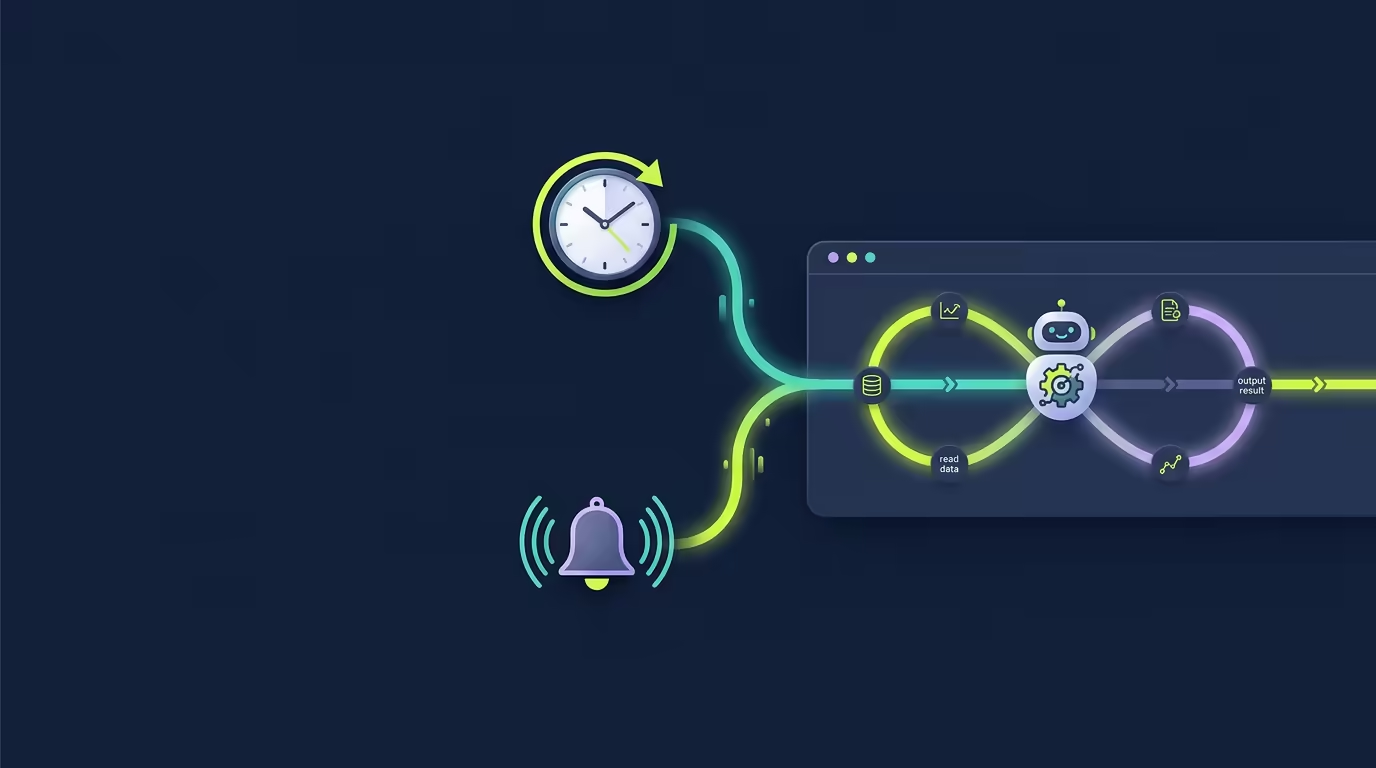
You can send a message any time the agent is open. Some work arrives on a timer instead. A changelog needs to regenerate each morning. A test suite should run before you start the day. A deployment endpoint should verify its own result when a build finishes. Scheduled & Event-Triggered Tasks runs this work for you, in a fresh thread, whether the trigger is a clock or a webhook.
What problem this solves
Scheduled & Event-Triggered Tasks moves the decision of when work runs outside your chat sessions. You define the task once and choose a trigger.
A one-shot schedule runs a task once, then clears itself. A repeating schedule runs on a daily, weekday, or weekly cadence until you pause or remove it. An event trigger launches a task when an authenticated webhook delivers a matching event key.
Each automated run starts in its own isolated thread. The run does not reuse the conversation that is open in the UI, so scheduled or event work stays separate from your active chat. When the event carries a payload, Tarsk passes that payload into the run as context the agent can read.
Requirements and setup
Open the Tasks view for the project you want to automate. Click the + button in the bottom-right corner. Enter a task description that tells the agent what to do and how to judge the result.
Expand Add schedule or event trigger to attach a trigger. Select Add to save. A task can run without a trigger as a manual task, and you can add a trigger later by editing the task.
Automated runs launch new agent work, so the project needs its model configuration in place. Keep the task enabled; a task set to Paused does not fire from the scheduler or a webhook.
Use Scheduled & Event-Triggered Tasks
1. Create the task
In Tasks, click +. Write the description as a clear assignment. For example:
Run the test suite and summarize any failures in a short report.Click Add to create a manual task first, or expand Add schedule or event trigger and add a trigger in the same step.
2. Add a schedule or event trigger
Open the task and expand Add schedule or event trigger. The trigger panel shows a Trigger toggle with Manual, Schedule, and Event options.
Choose Schedule for timer-based work. You then pick Once or Repeating.
- Once shows Run at with a date and time value. Tarsk stores the value in UTC and records the timezone, shown as
Timezone: <zone>. - Repeating shows a Preset set to Daily, Weekdays, or Weekly. Weekly adds a Day selector (Sunday through Saturday). All presets use a 24-hour Time field in
HH:mmformat.
Choose Event for webhook work. Enter an Event Key such as deploy.finished or door.opened. The key supports letters, numbers, and the characters ., :, _, and -, up to 100 characters.
3. Test the event from a project thread
From a project thread, run:
/send-event deploy.finishedTo include a payload, add valid JSON:
/send-event door.opened {"doorId":"front"}Tarsk matches the key against the enabled event tasks in that project, launches each one, and reports how many matched, launched, and skipped.
4. Let the run start in its own thread
A scheduled or event run creates a fresh thread attached to the task. The progress runs through the normal chat execution path, and the task moves between Ready, Working, and Done states. A Working task shows a spinner.
For event launches, the agent prompt carries the task description followed by the event context: the eventKey and the parsed payload. Write the task description so the agent knows how to use that payload. The event is context for the agent, not a separate input field.
5. Check the automation state
The Tasks list shows an automation label and the next scheduled run for timer-based tasks, plus the last trigger time and whether the last automated run succeeded or failed.
Use Paused to stop timer and webhook triggers from firing. Run Now starts the task immediately even when it is paused, which is useful for testing a trigger without waiting for the clock or the event.
A practical example
You want a morning summary of open work. Create a task with this description:
Check the project for failing CI, unmerged pull requests, and open questions. Post a short morning summary.Add a Schedule trigger set to Repeating with Weekdays at 08:00. Save the task.
Each weekday the scheduler starts a fresh thread for that project and asks the agent to produce the summary. The Tasks list shows a Working state while the run progresses, then Done, then the next run time for the following morning.
For an event example, create a task with this description:
When a deploy finishes, verify the new version is serving traffic and record the result.Add an Event trigger with the key deploy.finished. Send a test event from a project thread with /send-event deploy.finished {"version":"2.4.0"}, or POST the same payload from your deployment pipeline. The agent reads the version value from the context and starts its verification in a fresh thread.
Advanced tips
Use chat to schedule a task
You can drive triggers from a project thread with natural language. Send Schedule this task for tonight at 9pm or Create a task to regenerate the changelog tomorrow at 8am, and Tarsk updates or creates the task and its trigger.
Point your deployment at the webhook
An external service can POST to the project’s event endpoint with a bearer token:
POST /api/projects/:projectId/events
Authorization: Bearer <project-event-token>
Content-Type: application/json
{ "eventKey": "deploy.finished", "payload": { "version": "2.4.0" } }The server checks the token, parses the JSON, and matches enabled event tasks by exact key. The response reports accepted, matched, launched, and skipped counts. The event key and payload must match a task you configured, so keep the key identical between your pipeline and the task.
Reuse a description, isolate the run
Write the task description so it stands alone, because each automated run gets a new thread. The running thread carries the payload context for event tasks, so tell the agent what to do with eventKey and payload explicitly.
Common pitfalls
The task never fires on time
The scheduler checks for due tasks on a short polling interval, not down to the second. A one-shot task is cleared after it fires, so schedule it again when you need another run. Repeating schedules stay active until you pause or remove them.
The webhook returns a skipped launch
A task that is already Working cannot be claimed again, so duplicates are skipped rather than queued. Wait for the run to finish, or pause it, before sending another event. Confirm the bearer token and the exact event key, since a missing or invalid token returns 401 and a missing key returns 400.
The agent does not see the payload
The event payload becomes context for the run. Verify that you passed a valid JSON suffix with /send-event or a well-formed body with your POST, and that the task description tells the agent how to use the payload.
Pause does not stop Run Now
Pausing suppresses the scheduler and webhook, but Run Now bypasses the pause by design. Use the task’s Active or Paused status to control automatic triggers, and use Run Now when you want an immediate manual run.
Summary
Scheduled & Event-Triggered Tasks lets you define project work once and run it on a one-shot timer, a repeating schedule, or an authenticated webhook event. Every automated run starts in its own isolated thread, and event payloads reach the agent as context.
Create a task, attach a Schedule or Event trigger, test it with /send-event from a project thread, and review the Working and Done states to confirm the automation matches your workflow.