
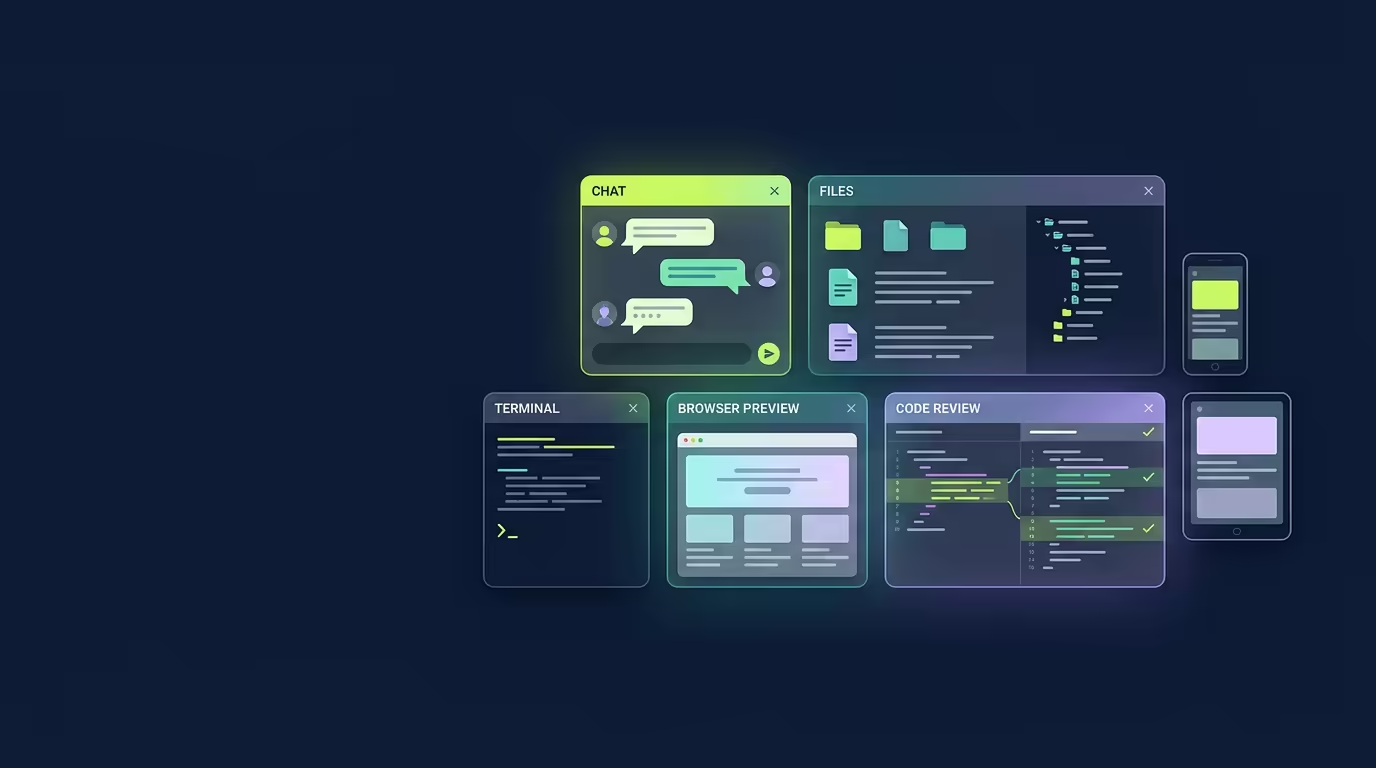
Coding in Tarsk means living inside a floating dock. Chat, files, terminal, browser, tasks, and code review sit side by side in separate windows, and each branch runs its own dev server with a live preview. You watch the change take shape as the agent makes it, instead of switching apps to look.
Why the workspace is laid out this way
A single chat pane hides where a change happened and what it broke. A dock with dedicated windows keeps every activity visible at once. The agent edits files while you watch the diff, and the browser preview hot-reloads as the edit lands. Communication between you, the agent, and the running app stays in one place.
The workspace surface
The floating dock always opens with the primary Chat window. Below the windows sits the app footer with three zones:
- Git Ops on the left
- The taskbar in the center
- Branches on the right
The taskbar lists the dock windows. Filled icons represent open windows. Dimmed icons open a panel that is not yet on screen. A grid button toggles between two layouts: Grid tiles the open windows together, and Expanded lets one window fill the view while you switch with the taskbar. A + button adds a new window for Chat, Files, Browser, Terminal, Tasks, or Review.
Browser and Terminal windows stay mounted when you are not looking at them. Their state is preserved rather than rebuilt, so a running terminal session and the current browser tab survive a layout change.
The six dock windows
Chat
The Chat window is the primary one and does not close. The composer lives in the window footer, so you start a run and watch its progress without moving. You can open extra branch chat panes through the Branches control; each is a separate dock window with its own conversation on its own branch.
Files
The Files window shows the thread’s directory tree. Open and edit files, create, rename, and delete, or drag and drop to copy files into the thread directory. Markdown renders inline as a preview, and image and video files open for a quick look. The window needs a selected thread, and shows a prompt when none is chosen.
Terminal
The Terminal window is an interactive shell scoped to the thread’s working directory. Type commands and read output across the agent run. When a project command is queued, it opens the Terminal window automatically. If you open a second Terminal while the live session runs in another window, that copy shows a Use here action instead of hijacking the session.
Browser
The Browser window is a built-in preview of your app. It shows an address bar with back and forward controls, a refresh button, and an Open in external browser action. A Select element from preview action flags an element for the agent to inspect, and the agent can run JavaScript in the live page to test its DOM.
Viewport presets let you check responsive layouts. Pick Desktop for full width, Tablet for a 768 by 1024 viewport, or Mobile for a 375 by 667 viewport. The chosen device mode persists across the dock.
The Browser expects the dev server to run. When the server stops, the window shows a Dev server stopped placeholder rather than a stale page. It works best with localhost; some external sites refuse to load in an embedded preview, and the window is a visual preview without dedicated developer tools.
Tasks
The Tasks window lists the project’s tasks with Ready, Working, and Done states. Scheduled and event-triggered tasks appear here, and the panel title notes when tasks changed recently. You create and manage the same tasks you run on a schedule or from a webhook.
Review
The Review window is a side-by-side diff of the original and modified files. Use the file list to move between changes, review the exact edits, and Revert a file you want to undo. Add inline comments on a change, and Fix comments sends your notes to the agent to act on. When the changes are ready, use Git Ops to open a pull request from the reviewed work. The window shows uncommitted changes with a dot on the Review icon and a summary of files added and changed.
Dev server: one live preview per branch
Each branch can run its own dev server. Use the Run/Stop control in the chat header after a Run Command is set in project settings, and the server starts inside that branch’s directory. Different branches can run on different ports at the same time, so work in parallel without them colliding.
The dev server and the Browser window work as one. When the server output shows a URL, Tarsk points the Browser at it automatically. That feature drives the core loop: the agent edits a file, hot-reload updates the preview, and you see the result.
A working example
You ask the agent to restyle the header and make it responsive. In the Chat window, send the request. The Files window shows the header component. The Review window fills with the diff as the agent edits. Run the branch’s dev server once, and the Browser window previews the page.
Switch the Browser to the Mobile viewport preset. The layout breaks below 480 pixels. Comment on the review with the class that causes it, select Fix comments, and the agent adjusts the code. The Browser updates, and the diff reflects the fix. The whole loop happens without leaving the dock.
For the interactive cases, open the Terminal window to run a command against the current branch, and check the Tasks window when a run spins off scheduled work.
Common mistakes
- The Browser shows a stopped placeholder. The dev server is not running. Start it from the chat header so the preview has a URL to load.
- A second Terminal cannot type. The live session belongs to another window. Select Use here on the standby copy to take it over.
- Files or Review ask for a selected thread. These panels depend on a thread. Pick the conversation or branch you want before opening the panel.
- The mobile preview does not stick. The device preset persists across the dock. Confirm the selected mode before judging the layout, and reload after the dev server restarts.
Summary
The Multi-Panel Workspace puts Chat, Files, Terminal, Browser, Tasks, and Review into one floating dock over a per-branch live preview. You watch edits land, navigate diffs, run commands, and check the app at three preview sizes without leaving the workspace.
Pick a task, run the branch’s dev server, and keep the Browser and Review windows open so you see both the change and its effect as the agent works.