
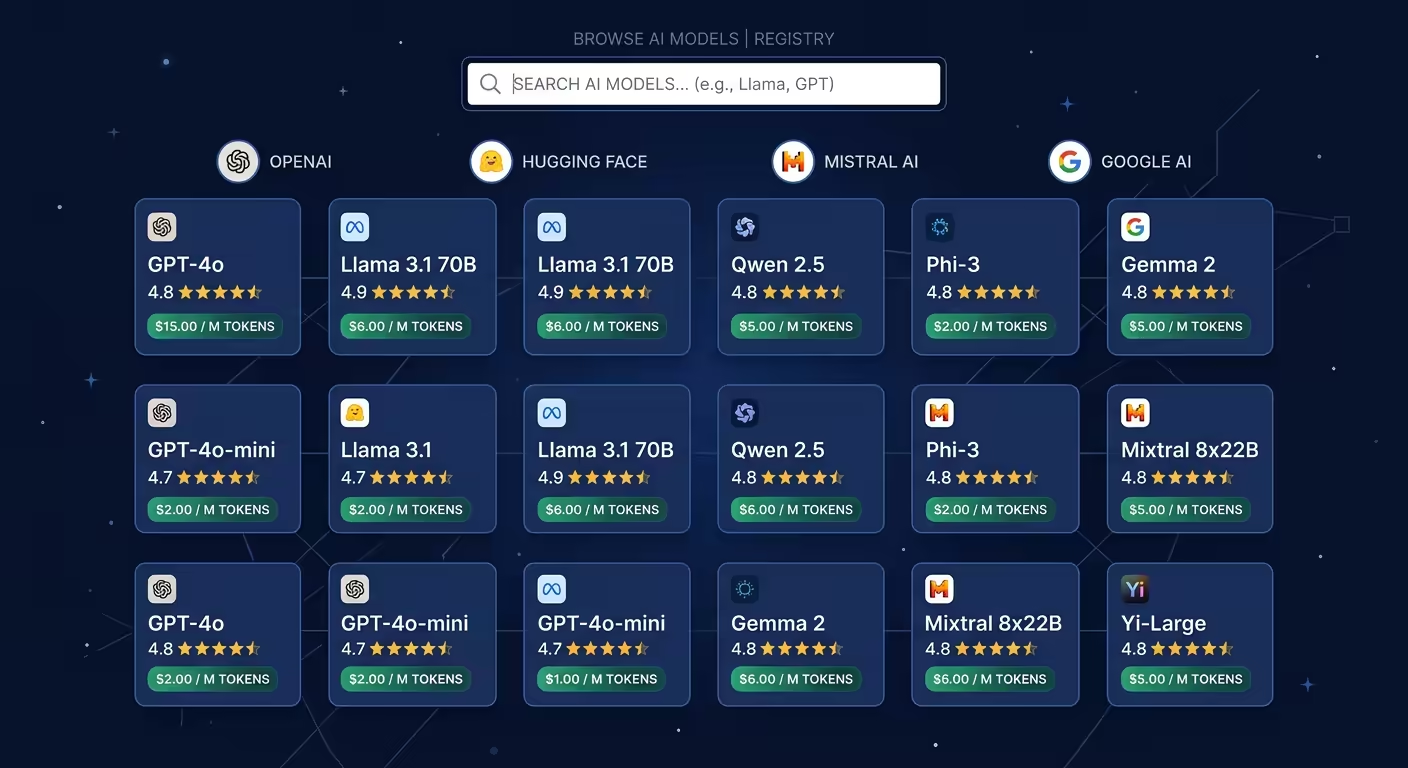
When you connect multiple AI providers, you end up with dozens or hundreds of models to choose from. The Models settings page gives you a single place to browse every model available across your configured providers, sort them by what matters to you, and toggle them on or off.
What the Models page shows
Go to Settings and select Models. If you have at least one provider configured with an API key, the page displays every model that provider offers, grouped by provider.
Each provider section starts with a header showing the provider logo and name. Below it, a “Select all models” checkbox lets you bulk-enable or disable every model from that provider in one click.
The page has two tabs:
- Coding shows text and code models. These are the models the agent uses for conversation, code generation, and reasoning.
- Image shows image generation models. This tab only appears when you have OpenRouter configured.
Switching tabs clears the search field.
Search across all providers
A search bar at the top filters models across every provider at once. Type a model name, partial ID, or keyword. The list narrows as you type. The search matches against display names, internal model IDs, and friendly names.
This is useful when you know the model you want (for example, “claude” or “deepseek”) but do not remember which provider hosts it.
Sort models within a provider
Each provider section has sort controls. On the Coding tab, you get three options:
Alphabetical (A-Z). The default. Models sorted by display name.
Price. Sorts by the average of input and output token cost, cheapest first. Useful when you want to minimize API spend.
Coding Intelligence. Sorts by a coding index score, highest first. When this sort is active, each model shows a 1-5 star rating next to its name. The star rating maps to the coding index:
| Stars | Coding Index |
|---|---|
| 1 | 0-19 |
| 2 | 20-29 |
| 3 | 30-39 |
| 4 | 40-49 |
| 5 | 50+ |
Hover over the stars to see the exact numeric index.
On the Image tab, you get alphabetical and price sorting. No coding intelligence sort applies to image models.
Read the per-model information
Each model row shows:
- a checkbox to enable or disable it
- the display name (derived from the model ID, with slashes removed and words capitalized)
- pricing as “$X.XX in | $X.XX out” (per-token input and output costs)
- star rating when sorting by coding intelligence
Free models (zero cost for both input and output) do not show a price.
Enable and disable models
Toggle a model’s checkbox to enable or disable it. Changes save immediately. There is no save button. A brief toast confirms the change.
Use the “Select all models” checkbox in a provider header to toggle every model from that provider at once.
Disabled models do not appear in the model picker during conversations. They remain visible in the Models page so you can re-enable them later.
Why you would disable models
You might disable models to:
- reduce clutter in the model picker by hiding models you never use
- prevent accidental use of expensive models
- limit the agent to models you have tested and trust
- keep only models with a minimum coding intelligence rating
Search for providers
The Providers page sits above Models in the settings sidebar. It lists every provider Tarsk supports, split into two sections:
Connected Providers are providers where you have configured an API key. They appear first, sorted with providers that have enabled models at the top.
Available Providers are providers you have not configured yet. Click one to open its details and add your API key.
A search bar at the top filters both sections by provider name. Type part of a name to narrow the list.
Configure a provider
Click a provider card to open its details view. You will see:
- the provider logo and name
- a link to the provider’s website
- an API key field (password input with show/hide toggle)
- a note that your key is stored locally and never shared
- the provider’s model list with the same sorting and enable/disable controls as the Models page
Some providers use OAuth instead of API keys. Those show a “Sign in” button instead of the text field.
Local providers like Ollama show a URL field instead of a key field, with a refresh button to re-fetch available models.
Some providers also show a balance badge (for example, “$12.50 balance”) if the provider reports your account balance.
How model selection affects the agent
When you start a conversation, Tarsk uses whichever model you selected in the model picker. Only enabled models appear in that picker.
If you enable a single model from one provider, the agent uses that model for every request in the thread. If you enable models from multiple providers, you can switch between them per thread or per conversation.
The coding intelligence rating gives you a quick comparison point, but it does not capture everything. A model with a lower rating might still be the right choice if it is cheaper, faster, or better at a specific task. The price sort helps you find the most economical option for routine work.
Practical model management
Start with a small set of enabled models. Test each one on your actual work. Then decide what to keep enabled.
Use the coding intelligence sort to identify models that score well on code tasks. Use the price sort to find affordable options for everyday use. Keep one or two high-scoring models enabled for complex work and one cheap model for quick questions.
If you connect a new provider, visit the Models page and disable the models you do not need before they clutter your picker.
Summary
The Models settings page shows every model across your configured providers in one view. You can search by name, sort by price or coding intelligence, and enable or disable models with immediate effect. The Providers page lets you search for and configure providers, add API keys, and manage models per provider.
Start by enabling a few models you know. Use the sorting tools to find new ones that fit your budget and quality needs. Disable the rest to keep your model picker clean.