
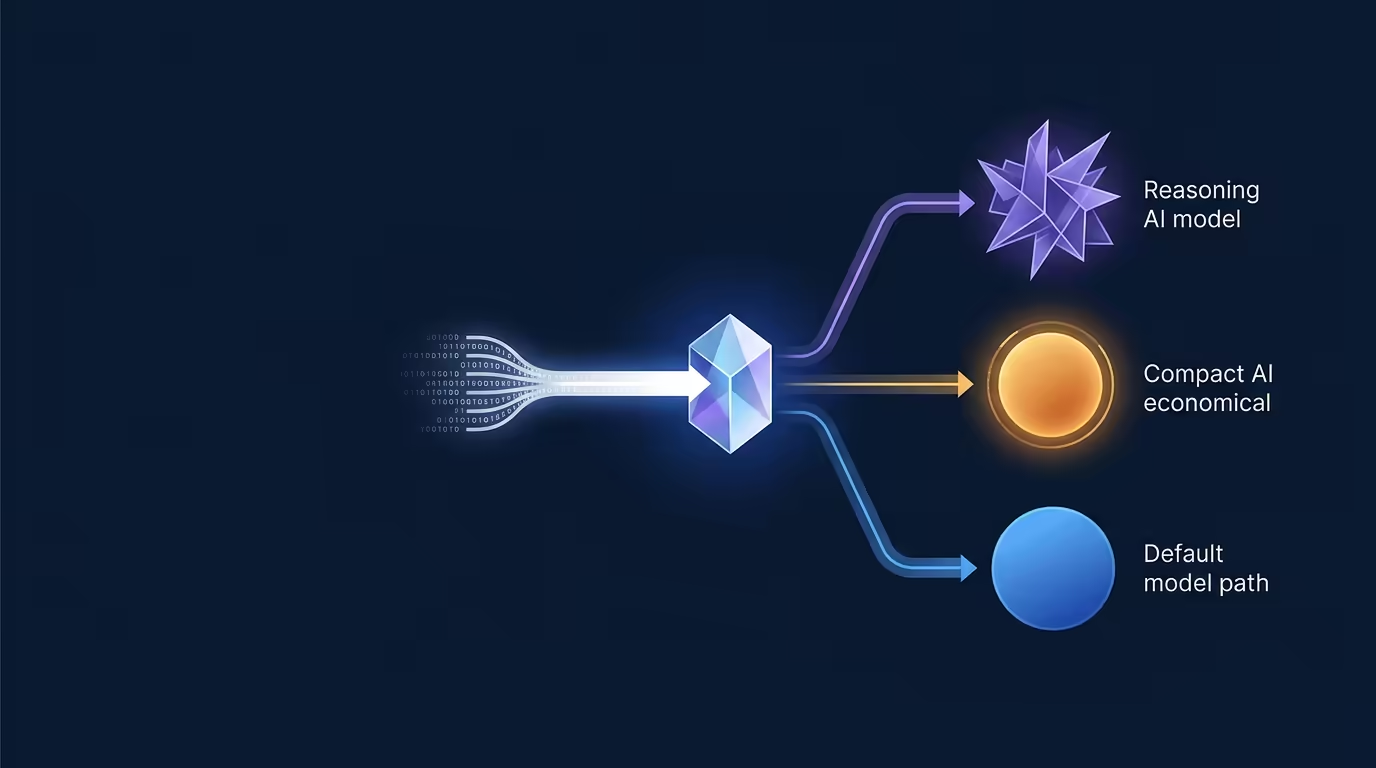
Auto Mode Routing lets Tarsk choose a model tier for your first prompt in a thread. You select Auto, describe the work, and Tarsk routes a simple request toward a cheaper model, a demanding request toward a smarter model, or an unclear request to your current model.
That choice saves a step at the start of a conversation. It also gives your project a repeatable way to balance model cost and capability.
Why Auto Mode Routing matters
Model choice affects the response you get, the time you wait, and the cost of a request. A typo fix rarely needs the same model you would use to investigate a production failure. You can pick a model by hand for every thread, or you can let Tarsk make the first decision from the prompt you submit.
Auto Mode Routing suits a mixed workload. Quick edits and straightforward questions can use the project’s Cheap model. Architecture work, difficult debugging, and broad refactors can use the Smart model. Tarsk keeps your manually selected model available as the Default option when the request falls between those categories.
The feature also helps if you are new to model selection. You can focus on describing the task while your project settings define the models behind each tier.
How Auto mode works
Auto mode evaluates the first user prompt in a thread and chooses one of three outcomes:
- Cheap: for short, well-defined work such as renaming a variable, fixing a typo, formatting a file, or changing a label.
- Smart: for complex, ambiguous, or higher-risk work such as production debugging, architecture design, or a multi-file refactor.
- Default: for work that does not clearly fit either group. Tarsk uses the model you selected in the model picker.
Tarsk makes this choice before it sends the prompt to the model that will handle the work. While the choice is in progress, the interface can show Picking a model…. After the route completes, the mode selector can show feedback such as last picked Smart.
The routing step reads the prompt as a task description. It does not replace the model that performs the work. It selects the target tier, then Tarsk sends your prompt to the model assigned to that tier.
Configure the model tiers
Auto mode uses project-level model aliases. Before you use it, open your project settings and configure the aliases that should handle each kind of work.
1. Enable the models you want to use
Open Settings and make sure the providers and models you want are enabled. Disabled models do not appear as choices for your project aliases.
2. Assign the aliases
Open the Model Aliases section in your project’s Advanced settings. Assign models according to the work you want each tier to handle:
- Cheap: a lower-cost model for routine tasks
- Smart: a stronger reasoning model for complex tasks
- Fast: the quick model Tarsk prefers for the routing decision, when you have one configured
You can leave an alias unspecified. Auto mode remains useful with partial configuration, because Tarsk falls back to your current model when it cannot resolve the selected target alias.
3. Save and test the project
Save the project, select Auto from the chat mode menu, and start a new thread. Use a prompt with a clear scope so you can see how the route matches your setup.
For example, try:
Change the button label from “Submit” to “Save” in the settings page.A short edit like this should fit the Cheap tier. Then start another thread with a task such as:
Investigate why authentication fails only in production and propose a fix.A production-only failure needs more investigation and should fit the Smart tier. Your aliases determine which specific provider and model handle each result.
Practical examples
Requests that suit Cheap
Use Auto for small tasks with an obvious result:
- “Fix the typo in the README.”
- “Format this file.”
- “Rename
usrtouser.” - “Convert these headings to sentence case.”
These prompts give the model a narrow action and a clear stopping point.
Requests that suit Smart
Use Auto for work that needs investigation, planning, or judgment:
- “Find the cause of this intermittent race condition.”
- “Design an architecture for a plugin system.”
- “Refactor state management across these modules.”
- “Review this authentication change for security risks.”
The Smart alias should point to a model you trust with longer context and harder reasoning.
Requests that may use Default
Some work sits between a quick edit and a difficult investigation. A moderately scoped documentation change, a product question with missing context, or a task that combines several small actions may use Default. In that case, Tarsk keeps the model you selected before you sent the prompt.
You can still choose a specific model manually when you already know which one fits the task.
Auto mode’s limits
Auto Mode Routing runs for the first prompt in a thread. Follow-up messages keep the thread’s selected model rather than triggering a fresh classification. Start a new thread when you want Auto to evaluate a new task from the beginning.
The route is a heuristic. Prompt length does not determine difficulty by itself. A short request can hide a serious security problem, and a long request can describe a routine change. Review the model’s work, especially when the task can affect production data, access controls, or many files.
Auto mode also adds a routing step before the main response. You may wait a little longer before the assistant begins work. The routing request uses a model assigned through the Fast alias when available, or the Cheap alias when Fast is not configured.
Tier names describe your project’s configuration. Cheap and Smart do not represent fixed universal models. You decide which provider and model each alias points to, so review those assignments when your budget, providers, or quality requirements change.
Fallback behavior
Tarsk keeps the conversation moving when Auto cannot resolve a route. If a target alias is missing, the routing service is unavailable, or the response does not produce a recognized tier, Tarsk uses the current selected model as Default.
That fallback makes Auto practical during configuration changes. It also means you should check your aliases if the assistant behaves differently from what you expected. A missing Smart alias, for example, can send a Smart decision to the current model instead of a separately configured Smart model.
Summary
Auto Mode Routing in Tarsk chooses Cheap, Smart, or Default for the first prompt in a thread. Project aliases control the models behind those choices, and fallback behavior keeps the request from stopping when a route or alias is unavailable.
Configure Cheap and Smart around your real workload, add Fast when you want a dedicated routing model, then test Auto with a small edit and a complex investigation. Select Auto when you want Tarsk to make the opening model choice for you.