
Talk to Tarsk and hear it answer, on your machine
Voice mode turns the composer into a spoken conversation, with speech recognition and speech synthesis running on your own machine.
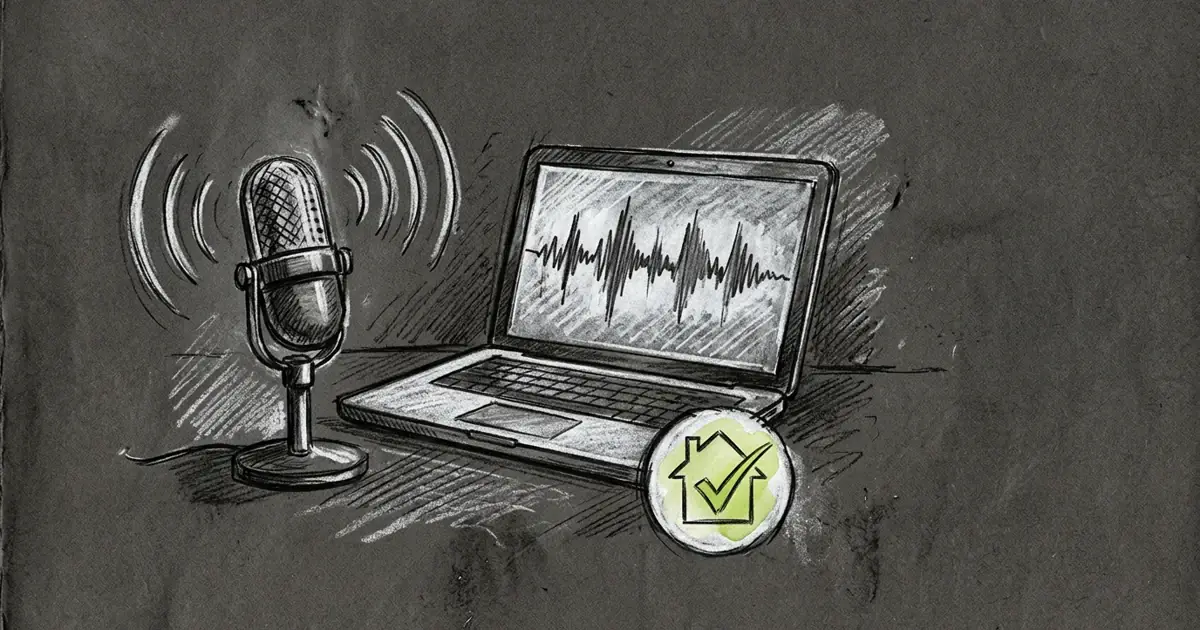
Press the microphone in the composer and talk. Tarsk writes your words into the chat, answers, and reads the answer back. The two speech models that make this work run on your own machine, so your voice never reaches a speech service.
Start with the microphone
The microphone button sits with the other composer actions. It appears when your machine can run voice mode: the browser has microphone access, WebAssembly and AudioWorklet, and the Tarsk server reports that its speech engine and speech assets are ready. You also need a chat model selected and a thread or project open.
Press it once and the composer turns into a voice surface. A label shows the current state, a transcript area shows what Tarsk heard, and a close button ends the session. Voice mode stays open across turns, so you can speak a follow-up without pressing the button again. Closing it restores the normal composer and keeps you in the same thread.
The first turn downloads two models
Tarsk needs two pieces of software before it can hear or speak.
- Speech recognition. A small English model, about 40 MB, that turns sound into text.
- Speech synthesis. A Kokoro 82M voice model in a compressed build, about 88 MB, that turns text into audio.
A dialog shows the download with a percentage and switches to “Preparing voice model” while the model loads. You can close the dialog and keep working; the download continues in the background. Later sessions reuse the files, so the wait happens once. One voice ships with the download. Tarsk needs network access for that first download and no network afterwards to hear you or to speak.
What happens when you speak
While you talk, Tarsk streams audio to the speech engine on your machine and shows partial text as it recognizes words. When you pause for about a second, it sends the finished sentence as a normal chat turn. Nothing else from the composer goes with it.
The label then walks through the turn: Listening, Thinking, Speaking. Your message appears in the thread the same way a typed message does, and the assistant reply lands in full.
Reading a long answer aloud takes minutes, and code, tables and links make poor listening. So Tarsk asks your chat model for a short spoken version, normally under 250 words, and speaks it sentence by sentence while the audio plays. The written answer in the chat stays complete. If the spoken version cannot be prepared, Tarsk reads a cleaned copy of the written answer instead, with code and links removed.
Interrupt when you have heard enough
Voice mode is half-duplex by default: Tarsk stops listening while it speaks, so the recognizer does not pick up its own voice. An Interrupt button appears during playback and stops the current sentence and anything queued behind it.
Turn on “Interrupt by speaking” if you prefer to cut in. Tarsk then keeps the microphone open during playback, and the first words you say stop the audio and start a new turn. The setting sticks for later sessions.
What stays local, and what does not
Speech recognition runs in the Tarsk server process on your machine. Speech synthesis runs inside the Tarsk app window. Neither sends audio to a cloud speech service.
Two things still leave your machine. The chat reply comes from the model you selected, which may be a cloud model, and the short spoken version comes from that same model. If you run Tarsk on a remote machine, your microphone audio travels to that machine over the connection you already use.
A few limits are worth knowing before you start:
- The recognition model is English.
- Dictation and voice mode cannot use the microphone at the same time.
- Changing threads during a spoken turn closes voice mode and returns you to the composer.
- Voice mode is available in the web and desktop apps. On iOS, use dictation, which can clean up the transcript with AI.
Try it
Update Tarsk, open a chat with a model selected, and press the microphone in the composer. Allow microphone access, wait for the one-time download, then speak a question and pause. Keep the window open while Tarsk answers, and press Interrupt if the reply runs long.