
Your public address belongs to your account
Turn on Mobile & Network Access and Tarsk saves this machine's public address to your account, so every signed-in device can find it. The sign-in check still decides who gets in.
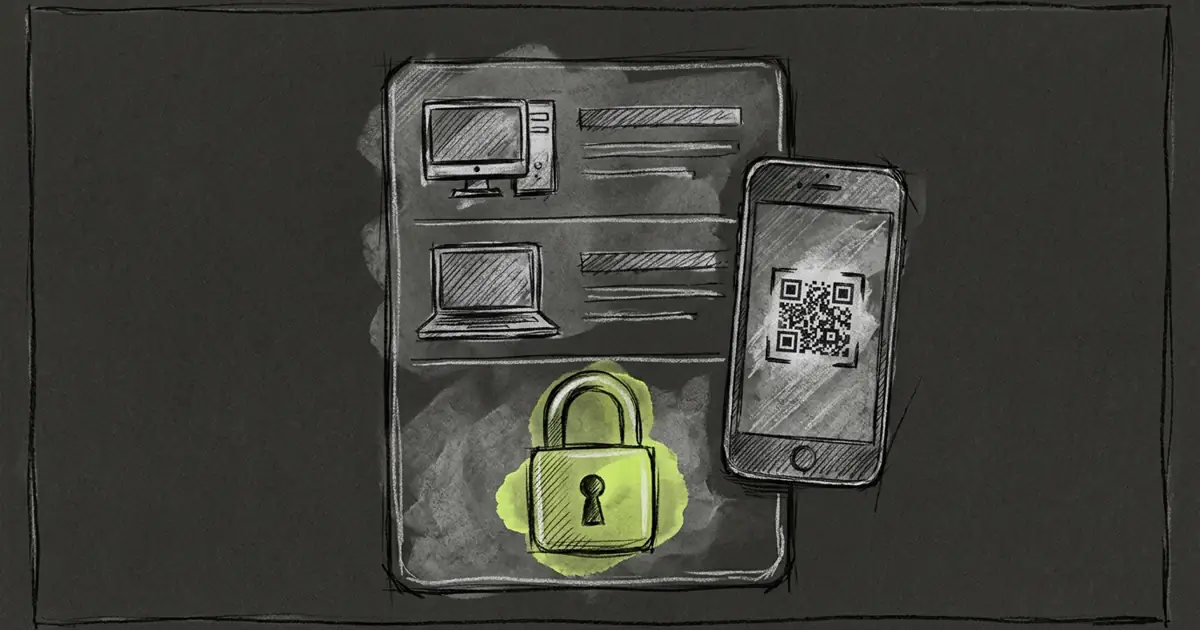
A laptop at home is hard to reach from a phone on a train. Tarsk closes that gap with one toggle. The address it creates belongs to your account, not to the machine, and that difference decides who can open it.
Turn it on once
Open Settings, then Remote Access, then Mobile & Network Access. The toggle stays disabled until you sign in, with the hint “Log in before turning this on.”
Turn it on and restart Tarsk. The page fills with an address like https://whkw9pabcd.tarsk.net, a copy button and a QR code. While it starts, the page says “Starting a public address…” and then settles on the address.
The address is short on purpose. It has ten characters and leaves out letters and digits that look alike, so you can read it out loud or type it on a phone without a second attempt.
The address is claimed by a secret
Tarsk asks its tunnel service for a public hostname for this computer. The request carries a secret that Tarsk generated here. The first valid secret binds the name, and every later request must present the same one.
That is why nobody takes your address by guessing it. A claim with a different secret is refused, and the desktop answers by dropping its saved name and asking for a fresh address. If the tunnel process dies, the stored secret brings it back without a new claim. Visitor traffic goes straight from the tunnel to the local server, so nothing sits in the middle and reads it.
The secret never appears in the public URL. It stays on the computer.
Your account gets a row
When the toggle turns on, Tarsk saves this machine to the signed-in account: a name and the public address. It saves again when an address becomes ready, and again when you sign in with access already on. Rename the machine and Tarsk saves the same address under the new name.
The account list is a discovery list. Any device signed in to the same account reads it and shows the machine by name. Your laptop, your phone and your desktop see the same rows.
A save can fail. The account service can be unreachable, rate-limited or slow. When that happens the address keeps running and the next attempt tries again. The address does not need the list to work.
The door is the sign-in check on the machine
The list only says a machine exists. Opening it is a separate check, and that check runs on the machine.
Open the address in a browser and Tarsk asks you to sign in as the account that owns that desktop. After that it sets an access cookie. The cookie is httpOnly, same site, secure over HTTPS, and good for twelve hours or until the session ends, whichever comes first. It names the account, the session and this address, and it is signed with a key that stays on the machine. A cookie for another address, another account or an old session fails.
The check covers calls to the app’s API. Three paths stay open so the sign-in page can load at all: request a code, verify the code, and read the installation name. Everything else needs the cookie.
Localhost and LAN requests skip the check. The gate exists for the public address.
Why a live connection carries a proof
The mobile app runs its pages on a local origin, not on your address, so the browser treats the access cookie as cross-site and never sends it. The app keeps the token from the sign-in response and sends it as a header instead.
A WebSocket handshake cannot set headers. So when the app opens the live connection to a public address, it adds the same token to the connection URL. Only a WebSocket upgrade reads it. Ordinary API URLs never carry the token, so it does not land in the logs of normal requests.
The server answers 401 with “Sign in with the account that owns this Tarsk.”
A second machine
Two machines never share an address. Each one claims its own name with its own secret, so the account list holds one row per machine.
On a phone, sign in with the account email and the six-digit code. The app reads the list and shows your machines. With one machine it preselects it, so Connect is one tap. With several, you pick.
A machine that is asleep, stopped or signed out refuses visitors. That reads as an offline machine, not as an account that lost it. The row stays in the list either way.
What it does not do
- Turning the toggle off stops the tunnel. The address stops answering, but the row stays in the account list.
- Signing out on the desktop also refuses visitors, because the check needs the stored session.
- A development build never publishes an address.
- The machine name is capped at 100 characters, so keep it short enough to read on a phone.
Set it up
- Sign in on the computer that should be reachable.
- Open Settings, then Remote Access, turn on Mobile & Network Access, and restart.
- Give the machine a name you will recognize on a phone.
- Scan the QR code or copy the address.
- On the other device, sign in to the same account and pick the machine.
Every device signed in to your account finds this machine by name. Only a visitor who signs in as that account gets past the check.