
Swipe a project out of Recents on your phone
On a phone or a narrow window, swipe a Recents row left to show Remove. The project and its files stay where they are.
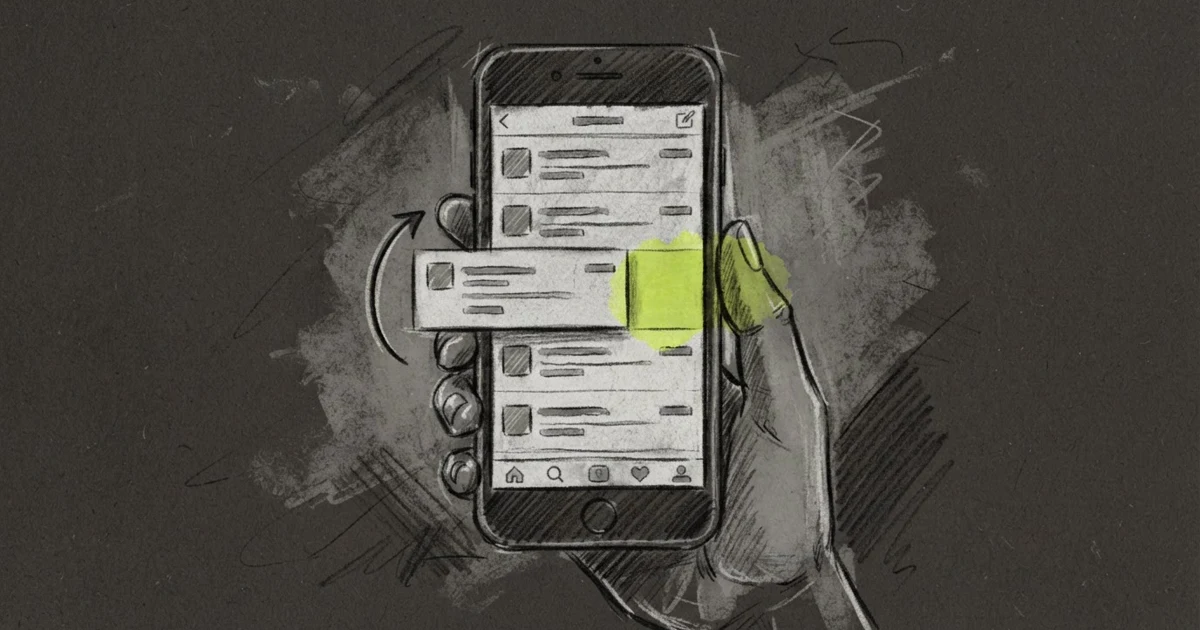
The Recents group in the Tarsk sidebar shows the last five projects you opened, including the one you tried once and never want to see again. On a desktop you clean it with the small remove button that shows when you hover a row. On a phone there is no hover, so the button never showed, and the stale project stayed.
Now you swipe.
Swipe left, tap Remove
When Tarsk uses its mobile layout, on a phone or in a narrow browser window:
- Put your finger on a project row in Recents.
- Swipe left. The row slides over and a red Remove button appears on the right.
- Tap Remove.
To change your mind, swipe the row back to the right. The button hides again.
A short swipe does nothing. Tarsk waits for a move of about the width of a fingertip, and the move must be more sideways than up or down. You can still scroll the sidebar without opening a row by accident, and a swipe never counts as a tap on the project.
What Remove does
Remove takes the project out of the Recents list. That is all. Tarsk does not delete the project, its workspaces, its files or its chats. Open the project again from the project list, and it comes back to Recents. Each device keeps its own Recents list, so a removal on your phone does not change the list on your computer.
Screen readers announce the button as Remove followed by the project name and from Recents.
Same gesture as chat rows
Chat rows in the sidebar already worked this way on mobile: swipe one left to hide it. Recents rows now use the same gesture, with the same distance and the same feel, so you do not need to learn two.
On a desktop
Nothing changes with a mouse. Hover a Recents row and click the remove button. Its tooltip reads Remove from Recents. A swipe with a mouse does not open the button.
Try it
Open Tarsk on your phone, open the sidebar, and swipe an old project in Recents to the left. Tap Remove.
- On mobile, swipe a Recents row left to show Remove, and swipe right to hide it.
- Remove only changes the list. Your project, files and chats stay.
- On a desktop, the hover button still does the job.