
Clean up old workspaces, one project at a time
Storage settings group workspaces by project, mark the ones with uncommitted changes, and delete many folders in one step.
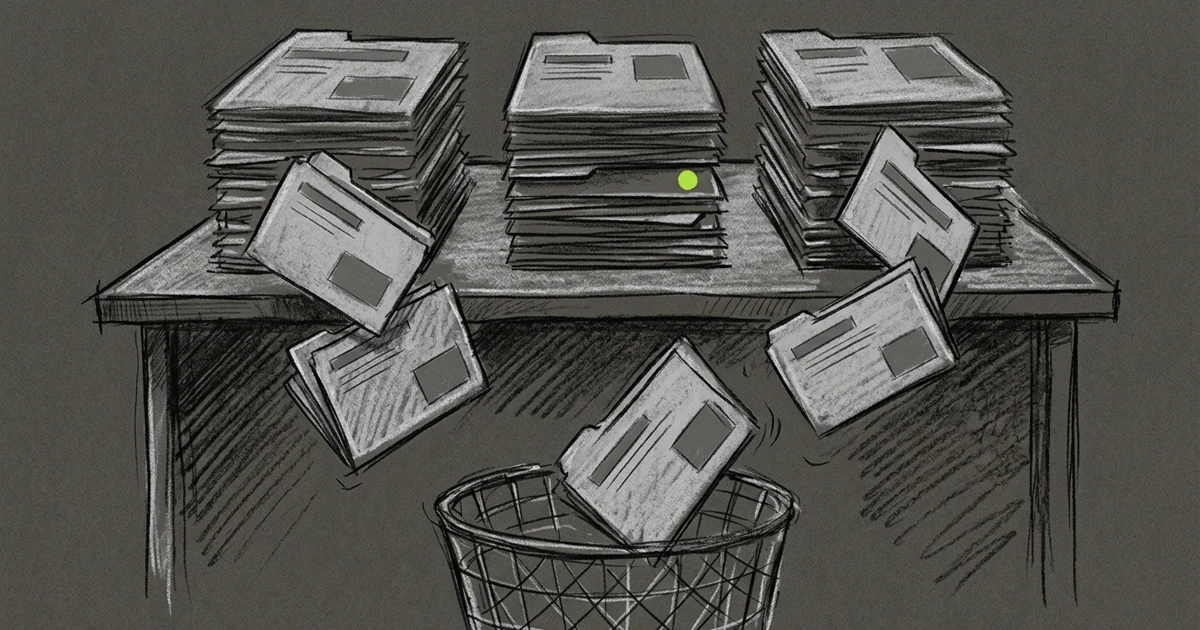
Each Tarsk chat gets its own copy of your code on its own branch. After a few weeks of work, those copies add up to many gigabytes, and the list of branches in Settings → Storage gets long.
The Storage page now groups the workspaces by project and shows which ones still hold work you have not committed. You can select the safe ones and delete them together.
Workspaces by project
Open Settings, then Storage. Under the free disk space line, each project gets a header with its workspaces below it. Each row shows the branch name and a button that opens the folder in Finder or Explorer.
A dot sits beside each branch:
- A brand-coloured dot means Has uncommitted changes. The folder holds edits that exist nowhere else.
- A grey dot means No uncommitted changes. Everything in the folder is in a commit.
Hover the dot to see the same words. Inside each project, the folders with uncommitted changes sort to the end of the list, so the clean ones sit together at the top.
Tarsk checks each workspace with a local Git status. It does not fetch from the remote or call GitHub, so the page stays fast with many workspaces.
Select many, delete once
Each row has a checkbox. Tick the folders you want to remove, and a delete button appears in the page header with a count, such as Delete 4 folders. Tarsk asks you to confirm before it deletes anything. The confirmation says that each branch and all its files go away, and that you cannot undo it.
To select a whole project in one click, click its name. Tarsk selects every folder in that project with no uncommitted changes and skips the ones with work in them. Click the name again to clear the selection.
You cannot select a workspace while an agent works in it. The checkbox stays disabled until the run stops.
After the delete finishes, the free disk space line updates, so you see how much room you got back.
Before you delete
A clean workspace can still hold commits that you never pushed. If you are not sure, open the folder from the row and check the branch, or open the chat and look at its Git status.
Clear in the page header does a different job. It removes the history of old archived chats and leaves workspaces alone.
Try it
Open Settings → Storage, click the name of a project you finished last month, and delete the folders that Tarsk selects.
- Workspaces now sit under their project.
- The dot shows which folders hold uncommitted changes.
- A click on the project name selects all of its clean folders.