Update the app without a new installer
The Tarsk desktop app loads a signed bundle of interface and server code, so a fix can reach you without a fresh download. Here is how channels, activation and rollback work.
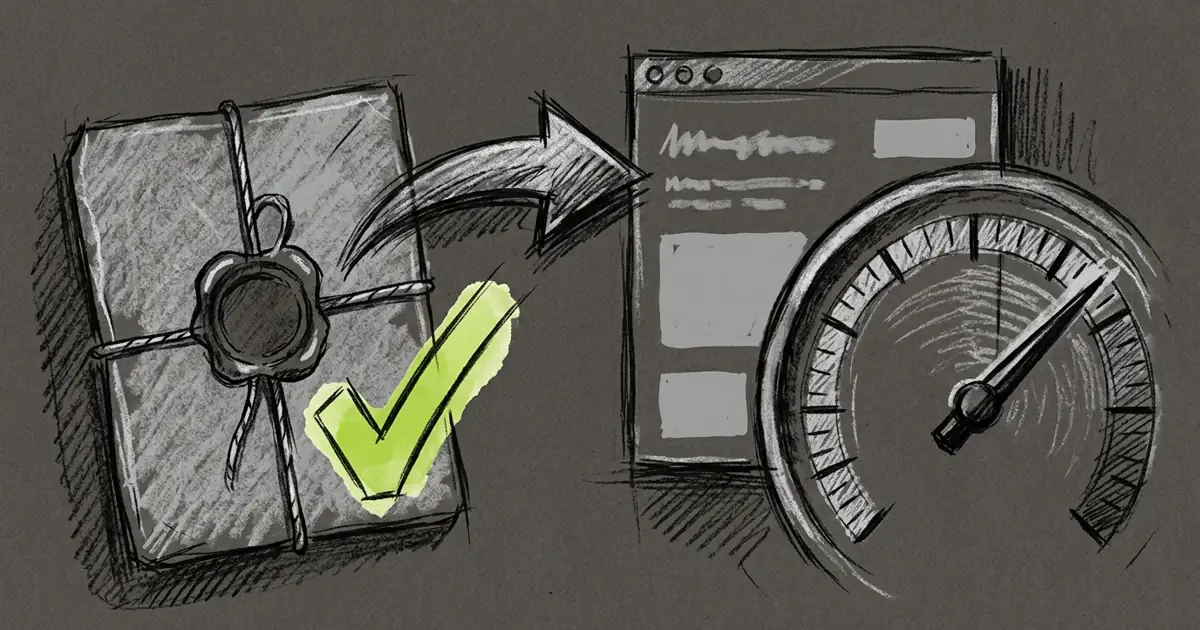
A wrong label in a menu once cost a full download of the app. On the desktop app it now arrives as a small signed file, and the window you already have stays where it is.
Tarsk splits the desktop app in two. A stable shell holds everything native. A release bundle holds the code that changes with each merge, and the app can swap that bundle without a new installer.
The window stays, the code moves
The app you install owns the window, the menus, the tray icon, deep links, the updater, the runtime and the database schema. A release bundle carries the rest: the interface, the server, the bundled tools, the project starters and the recommended model list.
A bundle is a zip of JavaScript and data, built once per commit. Native parts never travel inside it, so one bundle runs on every Mac.
The app imports the bundle’s server in its own process and starts it at the next launch. A bundle that arrives mid-session waits for a restart, so the code under your cursor does not change while you work.
Switch a channel
Open the Tarsk menu, then Check for Updates, then Switch Channel. The submenu offers two channels, production and staging. The running one carries a check mark and is disabled, because downloading it again would fetch the same code.
Two more items sit under the channels:
- Other Channel… lets you type a channel name.
- Install Bundle File… takes a zip from your disk.
Settings has a Release Channel page with the same controls and a status block. Running names the bundle id and where it came from. Trust says whether the bundle is signed. Contract shows the two integers that decide whether the bundle may run at all.
When a bundle is ready, the page offers Apply and Restart. The menu offers Restart to Run Bundle with the id. Both do the same thing: the next start activates the staged bundle.
A channel is a moving pointer. It names one bundle id, and the bundle behind that id never changes, so an app that recorded the id keeps running the same code until you stage something else.
When a bundle fails to start
A new bundle has to prove itself. The app counts a start attempt before the code runs, and the bundle becomes the last good one after ten seconds of a working session. Quitting inside those ten seconds also counts as a good start, so a short session does not leave a failure behind.
Two bad starts quarantine that bundle id. The app then falls back to the last bundle that worked, or to the baseline it carries inside itself, and says so on the Release Channel page.
The database never moves with a bundle. Every bundle declares a shell contract version and a database schema epoch, and the app refuses a bundle whose integers differ from its own. That refusal is what makes a rollback safe: older code never meets a newer schema.
A bundle from a channel must carry a signature that matches the key inside the app. The signature covers the zip hash, so a rewritten record cannot point at different bytes. The one exception is a zip you pick from disk yourself. The app accepts an unsigned local file, marks it untrusted, and shows that in the status block.
One build for the app and its fallback
A production release builds both halves from one commit. The tag names the version, the bundle id starts with that version, and the GitHub Release carries the same name.
The order matters. The release workflow builds and signs the bundle first, on an Intel Mac runner. It then builds, codesigns and notarizes the app for Apple Silicon and Intel, and the app takes the signed production zip as its baseline instead of compiling its own copy. A fallback therefore runs the exact bytes the production channel serves.
Nothing publishes until both app builds pass. After that, the app files, the bundle and both .dmg installers land together.
You can start a release by hand. The workflow takes main, increments the latest tag, pushes it and builds it, with a patch bump unless you name a version. Naming a version that already exists rebuilds that tag, so a runner or notarization failure does not force a new version number.
A merged pull request becomes staging
Staging follows merges. When a pull request targeting main closes as merged, the workflow publishes the staging bundle from main. A pull request that closes without merging publishes nothing.
The workflow checks out main rather than the pull request head, because a squash or rebase merge rewrites the commit. One publish runs at a time. A newer merge replaces a queued run, so staging converges on the newest main, and a publish that already started is left to finish. The upload writes several files, and a cancelled run could leave a pointer naming a zip that never arrived.
A merge from a fork is the weak case. Pull request runs from a forked head may have no repository secrets, so signing fails and staging stays on its last bundle. The failed run is visible, and the workflow publishes nothing unsigned.
A direct push to main does not move staging either. You can publish it by hand from any ref, and GitHub records who did it.
What still needs a new installer
Release channels are a desktop feature. The command line app runs the code it was installed with, and its settings page says so.
Some changes stay with the shell and need a full signed build: native modules, the runtime, the tray artwork and the database schema. A bundle runs with your user privileges, including the tools the agent can call, so the signature is the only gate on what it does.
Installs do not follow a channel on their own. You stage a bundle, then restart, so a channel switch waits for a moment you choose.
Try it
- Open Settings → Release Channel to see which bundle your app runs.
- Switch to
stagingto try merged work before a release, then switch back toproduction. - Watch the Trust and Contract rows when something looks wrong. They name the reason a bundle was refused.
Download the desktop app and pick a channel from the Tarsk menu.