
Run a chat on another machine
Send a chat to a desktop or server that stays awake, and keep the code, keys and Git history under your control.
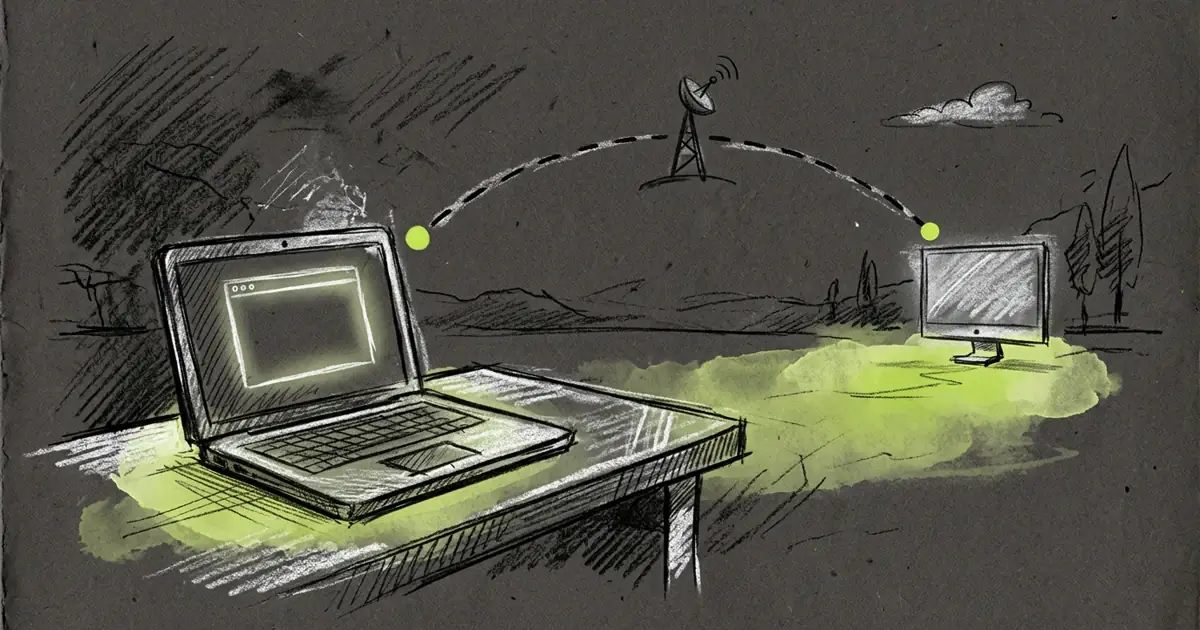
A long agent run needs a computer that stays awake. Tarsk can send a chat to another Tarsk at a public address, so a desktop or a small server does the work while your laptop stays with you.
What a remote chat is
Tarsk runs the agent next to the code. A remote chat moves that pair to another computer: the agent, the clone and the branch all live there.
Choosing a remote machine creates a new thread with its own full clone and branch on that machine. It does not mirror a local thread. The clone starts from committed Git state, so uncommitted edits on your laptop stay on your laptop.
Tarsk takes a snapshot of that clone. Later chats reuse the snapshot, and work moves between machines only through Git: commit and push here, fetch there. The branch picker stays honest for the same reason. Every branch it lists belongs to the machine that runs the agent.
Set up the machine you want to reach
On the computer that will host the chats:
- Open Settings and choose Remote Access.
- Sign in, then turn on Mobile & Network Access.
- Give the machine a name you recognize under Machine name. The name appears in the chat footer and in error messages.
- Copy the public address. The page shows it with the tunnel status and a QR code.
Restart Tarsk after you change the toggle. Anyone who opens the public address must sign in as the same account that is signed in on that computer. Turn the toggle off and restart to withdraw the address.
Add the machine and sign in
On the computer you work from:
- Open Settings > Remote Access.
- Scroll to Remote Machines and press Add Machine.
- Enter the public id or the full address, for example
rsawt2ud3n, and save.
Each row has Sign in. Tarsk sends a code to your email and asks for the six digits. Until that step succeeds, chats that target the machine cannot run there.
Use the pencil to rename a machine, or Remove to delete the bookmark. Removing a bookmark does not shut down the other server.
Pick the machine for a chat
The machine control sits in the composer footer, left of More actions. It appears when the project has at least one remote machine.
The control names the machine the selected chat runs on. A chat’s machine is fixed when you create it, so an open chat never moves between computers. The menu sets the default machine for new chats: Local, or one of your saved machines.
Remote chats need a project with a credential-free HTTPS Git URL. If the project uses SSH or asks for a password, the control disables the remote options and says why.
Where your keys go
The Remote Machines page states the rule: chats on a Remote Machine use your provider API keys from this computer. Tarsk sends them with each request that calls a model and does not store them on the remote machine.
Your keys win over the remote machine’s own keys for that run, and your model aliases and per-model settings replace theirs. If you selected a local provider that the remote cannot reach, Tarsk refuses the run instead of billing an account you did not choose.
Git works differently. Tarsk forwards the Git credential stored on this computer for the clone. The remote machine saves it as that project’s credential, not as the machine-wide default, so your chat does not change the remote user’s Git account for other work. If the clone is refused, Tarsk asks you for credentials here.
When the connection drops
The conversation lives on the remote machine, so Tarsk has nothing to show while that machine is unreachable. The chat area says “Remote machine unavailable” and names the machine. Retry checks again and refreshes the lists. The conversation opens when the machine answers.
Stop applies to the run you are looking at. A delayed stop request cannot cancel the next run in the same conversation. If the stream drops, Tarsk reports an interruption and reconciles. It does not claim the work finished.
Limits worth knowing
- The host needs an account and Mobile & Network Access turned on. A machine that never turned it on cannot appear in another computer’s list.
- Remote chats need a credential-free HTTPS Git URL for the project.
- Uncommitted work does not travel. Commit and push before you start a remote chat.
- The remote clone is a snapshot of committed state at creation, not a live mirror.
- Automations and scheduled tasks still run on the server where you set them up, not on the remote machine.
On a phone or tablet, Tarsk asks you to sign in to your account first, lists the machines on that account, and connects to the one you pick.
Try it
- Turn on Mobile & Network Access on the machine that should run the work.
- Add that machine in Settings > Remote Access, sign in, then pick it in the composer.
- Keep Git as the way you move work between machines.
Read the Remote Access documentation or download Tarsk.