
Three views of the same task board
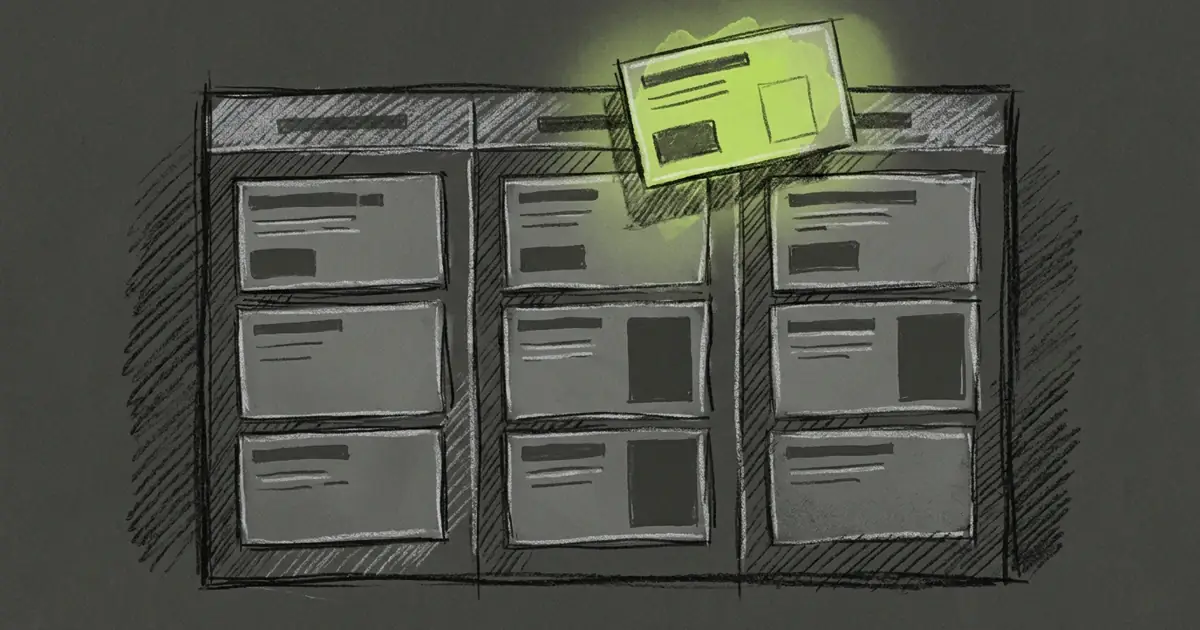
Summary rows, a title-only list, and a board where each column is a tag. Drag a card and Tarsk moves the tag for you.
Forty tasks in a flat list answer one question: what is next. They say little about how the work is grouped.
The project task board gives you three shapes for the same tasks. One of them is a board where each column is a tag, and dragging a card changes the tags.
Summary, list, board
The toggle in the Tasks header cycles the views, and its icon shows where the next click lands.
- Summary shows the full row: title, a line of the description, tags, status and the automation label.
- List shows the title only, so more tasks fit on one screen.
- Board lays the tasks out in columns.
Tarsk remembers your choice for the next time you open the window. The board needs width, so in the narrow application sidebar the same tasks appear as rows.
The Automations tab has no board. Automations already carry a trigger label and a run history, and a column of them is harder to scan than a list, so that tab cycles between list and summary only.
Columns are tags
Each project tag gets a column, in the order your tags appear in the filter. A task that carries three tags appears in three columns.
A leading No tags column holds everything untagged. It shows up only while no tag filter is active and some visible tasks carry no tag, because a checked tag filter already excludes them.
The column header carries the tag name, a task count, and a plus button that opens the add dialog with that tag already applied. An empty column centers the same button, so you can fill a column without reaching for the toolbar.
Drag a card, move a tag
Dragging a card from one column to another changes its tags:
- The source column’s tag comes off.
- The target column’s tag goes on.
- The task’s other tags stay as they were.
A drop that would change nothing is refused, and the column does not light up as a target. That covers the card’s own column and a target tag the task already carries. Dropping on No tags takes the source tag off and adds nothing.
The card appears in its new column while the save is in flight. If the save fails, the card returns to the column it came from. Tag counts refresh after the move, and they count only tasks that are not Done.
Why a big board still scrolls
A board tempts you to keep everything visible. That is how it gets slow. Two things keep it quick:
- Cards are virtualized per column, so Tarsk draws only the cards on screen. A column with two hundred cards costs about the same as a column with ten.
- Columns snap one at a time as you scroll sideways, with a visible horizontal scrollbar. If your system asks for reduced motion, the scroll jumps instead of gliding.
Rows and cards animate as they arrive and leave, so a card moving between columns looks like one move.
Limits
- A task in several columns appears once per column. Moving it changes tags, and the status stays.
- The board groups tasks by tag. It has no timeline, no swimlanes and no due dates.
- In the narrow sidebar, and on the Automations tab, the board is not offered.
Try it
- Open the Tasks window in a project with a few tags.
- Click the view toggle until the icon offers the board.
- Drag a card from one tag column to another and watch the tag chips on the card change.
- Drag a card into No tags to strip its column tag.
- Add a tag filter to narrow the board to the columns you care about.
Three things to carry away:
- Columns are tags, so the board shows how the work is grouped.
- A drag is a tag edit: one off, one on, the rest untouched.
- Summary, list and board all edit the same tasks, so you can switch shape as the question changes.