
Sign in with a passkey inside Tarsk
The Browser window now handles passkey and security-key sign-in, so a site that used to fail in the embedded page lets you in without leaving the chat.
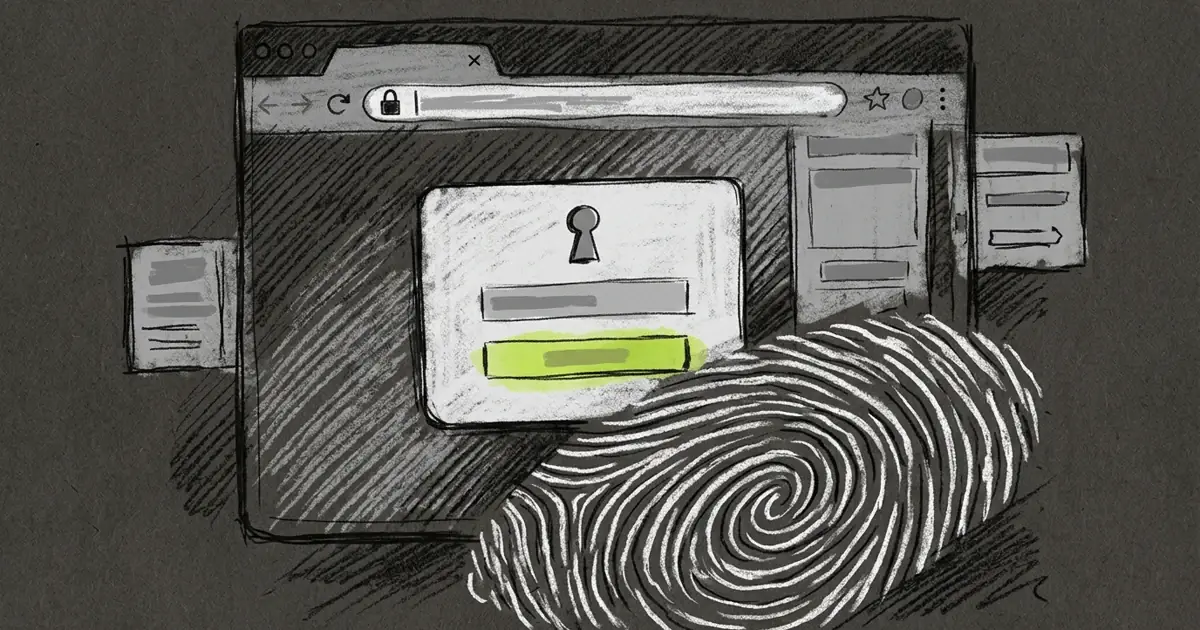
GitHub asks for your passkey. You tap the button, Touch ID reads your finger, and the page reloads signed in. The chat that sent the agent there stays open behind it.
That flow works in Tarsk now. It took a change on two surfaces, because an embedded page cannot grant itself a passkey.
A passkey needs the browser, not the page
A passkey lives in your keychain, and the browser asks the system for it. A page never touches the private key. It asks for a signature, the browser brokers the ceremony, and the site checks the answer.
The Browser window is an embedded page inside Tarsk. In the browser version of the app, Tarsk owns the frame around that page. Browsers withhold passkey calls from a frame by default, so every sign-in attempt from the panel failed. The button spun, or the site reported that passkeys were unavailable. The frame blocked the call before your keychain heard about it.
The desktop app already worked
On desktop, Tarsk renders the page in a native view that acts as a top-level page, not a frame. The system treats it like a browser tab, so it brokers passkey requests on its own.
The first time you use a passkey there, macOS asks whether Tarsk may use passkeys. Answer once, and the usual sheet follows: Touch ID, a nearby iPhone or iPad, a paired security key. Later sign-ins go straight to the sheet.
The browser version needed one permission
The frame now tells the browser that passkey requests may pass through it. That single delegation covers both halves of the standard: reading an existing passkey and creating a new one.
Nothing else changed. Tarsk leaves the ceremony to the browser. It stores no credentials, and it never sends a passkey flow to your system browser.
What works, and where
In the desktop app, passkey sign-in works on any site that offers it, GitHub included. So does creating a passkey in an account’s security settings, the passkey suggestion that appears above a username field, and a security key over USB, NFC or Bluetooth.
In the browser version of Tarsk, passkey sign-in works on sites that allow their pages to be embedded. Many do. GitHub does not: it tells browsers to refuse, so its pages render only in the desktop app.
| Task | Desktop app | Browser version |
|---|---|---|
| Sign in with a passkey on a site that allows embedding | Yes | Yes |
| Sign in with a passkey on GitHub | Yes | No, the page cannot load |
| Create a passkey in account settings | Yes | On sites that allow embedding |
| Security key over USB, NFC or Bluetooth | Yes | On sites that allow embedding |
You approve, the agent waits
The prompt belongs to the operating system, so the agent cannot press it. It opens the page, fills the username, and stops at the sheet.
Your passkey stays in your keychain, and Tarsk never sees it. When you approve, the page reloads signed in and the agent carries on from there with the session your approval created.
Where this happens
Each chat owns a Browser window in the dock, marked with a globe. It keeps its page loaded while you work in another window, so switching back does not sign you out or reload the site.
The project setting Built-in Browser is on by default. Turn it off and the Browser window disappears, while links open in your system browser instead. In that mode passkeys behave as they do in Safari or Chrome, because that is where the page lives.
The toolbar has an address pill that expands when you click it, Back, Forward and Refresh, and a button that opens the page in your system browser. A device toggle switches the page between desktop, tablet and phone widths. The agent drives the same window with its browser tool: open a URL, read the page, click, type, take a screenshot.
Limits worth knowing
Your operating system and its web engine decide which authenticators a page can reach. A machine that cannot offer passkeys in an embedded view cannot offer them here either.
A site that refuses to be embedded will not load in the browser version, with or without passkeys. Open it in the desktop app.
Tarsk runs no passkey code of its own, so a ceremony behaves the same here as in the system browser on the same machine.
Try it
- Open a chat in the desktop app and open the Browser window.
- Go to a site where you have a passkey, such as GitHub.
- Choose the passkey option on its sign-in page.
- Approve the macOS question about passkeys, then approve the passkey sheet.
- Ask the agent to continue. It picks up the signed-in page.
Keep three things in mind:
- Passkeys work in the desktop app on any site that offers them.
- The browser version needs a site that allows embedding.
- You approve every prompt. The agent cannot, and your key never leaves your keychain.