
One MCP server setup for every project
A server you add once serves every project, and a project can still pin its own endpoint.
You connect Linear in one project and the agent starts reading issues. A week later you open a new project and ask about the same issue. No Linear tools. The server was never global, so each project started empty.
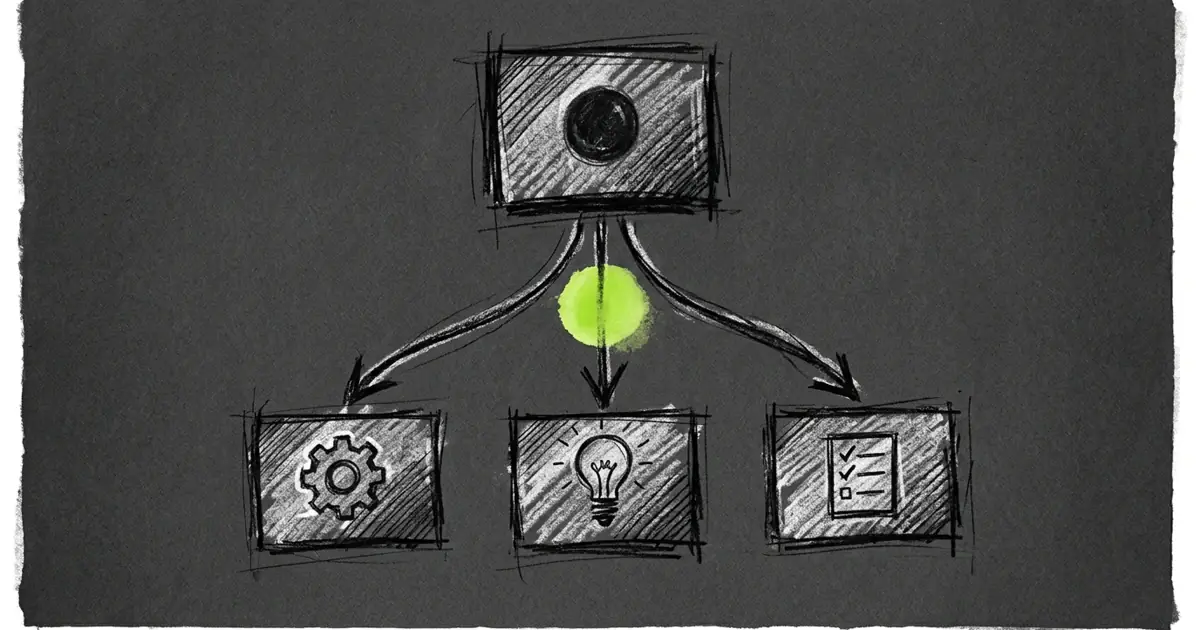
MCP servers now have two scopes. One set belongs to you and follows every project. The other belongs to a single project and stays there.
Two sections, one list
Settings → Integrations shows both. Servers you added for every project sit under Globally Configured. Below that comes the project you have open.
Add a server with a project open and it goes into that project. Open Settings with no project selected and the same form writes the global set. The section a row sits in tells you which file it belongs to.
What a global server gives you
- Every project sees it, including projects you create later.
- One sign-in covers all of them. Tarsk keeps the authorization with the global scope, so a second project does not send you to the browser again.
- Deleting a project removes nothing from the global set, which lives outside every project folder.
Builder.io works the same way. Its provider connection adds servers to the global set, and it adds only names the set does not already have. Disconnect Builder and the servers stay, so reconnecting writes nothing.
A project can still pin its own
A project entry with the same name wins over the global one. That gives a project a way to point at a different endpoint, or a different package version, without asking everyone else to change.
The project file also states something the global file cannot: this repository needs this server. Teams commit that file, so a colleague who clones the project gets the same servers with no setup.
What a row shows
Each row shows the server’s icon, the tools it offers, and an estimate of what those tool definitions cost in tokens. A line under the name reports freshness: “Refreshed 5 minutes ago”, or “Tools not loaded yet” when Tarsk has not reached the server.
The actions menu holds what you need:
- Sign in appears when the server asks for authorization, and Sign Out replaces it once you have a token.
- Refresh Tools fetches the catalog again after the server adds or changes a tool.
- Delete removes the entry, and the confirmation says “from the global configuration” when the row is global.
Open a row and you get its tool list, with a token estimate next to each name. A server that offers forty tools is worth checking before you add it to every project.
Icons
A server row shows the icon of the server’s own site, captured when you add it. A local server has no address to read, so it keeps a plain glyph. Five servers in one list look alike without the icons.
What changed for existing setups
Nothing breaks. Servers you configured in a project stay in that project and keep their names, their tools and their sign-ins. Where a project entry and a global entry share a name, the project entry wins, so a working setup behaves as it did before.
Tarsk reads both files every time it builds a tool list, so a change to the global set reaches every project. A chat that is already running keeps the tools it started with and picks up the new set on its next message.
Limits worth knowing
- A global server applies to every project you open, and its tool definitions count against the context of every chat.
- A project can shadow a global name, and the shadowed global server stays configured. To use the global one, delete the project entry.
- The global file is a plain file in your home folder, and other MCP clients can read it. They ignore the fields Tarsk adds for its own use.
- Each project keeps its own tool catalog. A new project loads the server’s tools on first use, and a refresh in one project does not refetch the catalog for another.
Try it
- Add a server with no project open, then open two projects and check Integrations in each.
- Expand a row and look at the token estimate before you add a second server.
- Add the same name in a project with a different endpoint, and confirm the project row is the one in use.
Download Tarsk or read the documentation.