
Tarsk on iOS: your computer does the work
The iPhone app signs in, finds your Tarsk machines, and picks one. Then you chat, answer prompts, edit tasks and review a diff from the phone.
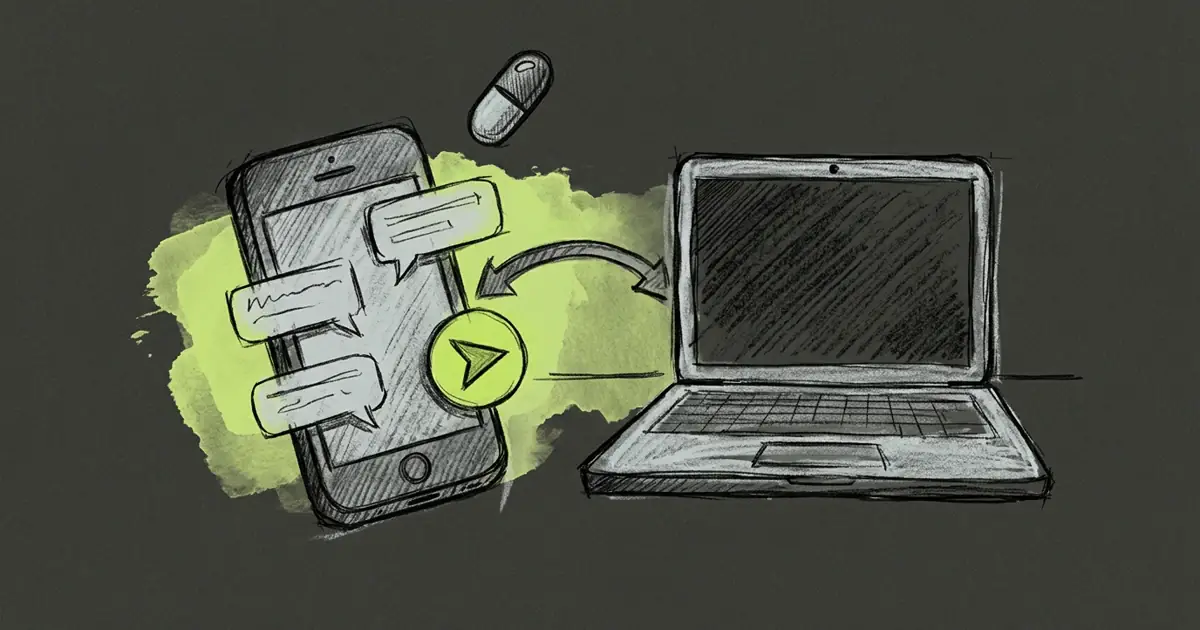
Your repository sits on the computer at home and you are on a train with your phone. The chat continues anyway, because the phone drives the same Tarsk that your computer runs.
Sign in, then pick a machine
The app opens on Connect to Tarsk with an email field. You sign in with the same email you use on the computer, and Tarsk sends a 6-digit code. There is no password to remember and no server address to type.
After the code, the app reads the machines on your account. With one machine it preselects it, so one press on Connect opens it. With several, you pick from a list. With none, the screen tells you to install Tarsk on a computer and turn on Mobile & Network Access there, because a machine that never shared its address cannot appear in the list.
An address still works when the account route does not. Use an address instead sits on every step, and a QR scanner fills the address from the code on your desktop.
The sign-in token is only a directory lookup. It lives on the connect screen, not in the keychain, and the machine asks you to sign in again at its own gate. That second check is the same one the browser uses.
The chat, from a phone
A new chat starts from the compose button. The composer carries what you expect:
- Five modes: Auto picks a model for the thread, Build reads, edits and runs commands, Plan writes a plan with no edits, Image generates images, Orchestrate plans on a strong model and hands the work to a cheaper one.
- The model picker, grouped by provider, with your account default.
- A plus menu for Photo, File and Camera, and Clear Chat.
- A slash picker that lists commands first, then skills.
- Dictation from the microphone, streamed into the box as you speak, with an optional cleanup pass before the text lands.
While the agent works, the phone follows along. When a run finishes you get a notification with the chat title and the first line of the reply, and tapping it opens the conversation.
Answering the agent away from the desk
The agent sometimes stops to ask permission: to run a shell command, to fetch a page, to raise a sandbox limit, or to confirm a long-running task. Those prompts reach the phone, and you answer them there. The transcript keeps a read-only row for each decision, so you can see later what you allowed.
Credentials work the same way. When the agent needs a Git token, the phone shows a dialog for that provider: username, the token field, a link to the provider’s page for creating one, Skip, and Save credentials. The dialog explains the rest: Tarsk stores the credential encrypted for this project, git uses it, and the agent never sees it.
Chats, projects and settings
The chat list is titled All Chats, or the name of the project you filtered to. It has a search field, an unread badge, and a hamburger button that opens the projects panel.
From that panel you reach the parts of a project you need on a phone:
- Tasks, to add, edit, retag or close work.
- Automations, to check what runs and pause it.
- Skills, MCP servers, Tools and Shell commands.
- Share and Settings.
If the computer becomes unreachable, an orange Can’t reach Tarsk banner appears above the list with a Retry button. Task edits made while it is down go into a queue and leave the phone when the connection returns, so a status change on a train is not lost.
Review and git
The review screen shows the working tree diff, and No Changes with “Working tree matches the last commit.” when there is nothing to review. You can leave comments on lines, and revert a file, with a warning that untracked files are deleted.
Git actions cover the whole loop: Generate Message writes a commit message, Create Pull Request opens one, and Sync with main, Fetch, Pull, Push Branch and Push Commits keep the branch moving. A project that commits directly says so: “This project commits directly to the branch. Pull requests are disabled in project settings.”
When a pull request is merged, the chat shows a panel with the branch name and two choices, Archive or New Branch.
What stays on the computer
The agent, the repository and the tools run on your machine. The phone is a client, and two things show it:
- The browser tool needs the desktop app’s Browser window. A call to it on the phone reads “Desktop app only”, because no iOS side can answer it.
- Charts, tables and forms sent by the agent have no phone renderer yet. They appear as a read-only row in the transcript.
Everything else here runs on the phone itself.
Limits
- The computer must be awake and reachable. Its public address is what the phone connects to.
- One machine per connection. Change Address in Settings opens the connect screen again to pick another.
- The account sign-in finds machines. It does not open one, so expect a second sign-in at the machine’s gate.
- A machine that never turned on Mobile & Network Access cannot appear in the list.
Try it
- On the computer, open Settings and turn on Mobile & Network Access.
- Install Tarsk on the iPhone, sign in with the same email, and enter the code.
- Pick the machine and press Connect.
- Send a prompt, then answer the permission prompt that arrives.
- Open Tasks and change a status with the computer asleep, then wake it and watch the edit land.
Three things to carry away:
- The phone signs in to your account to find your machines, then connects to the one you choose.
- Chat, prompts, tasks, review and git all work from the phone.
- The agent and the repository never leave your computer, and the browser tool stays on the desktop.