
From install to a playable game with Tarsk
Install Tarsk, sign in with Claude, and build a Flappy-style browser game. Then try two art styles in parallel, play-test it and ship it.
You can go from a fresh Tarsk install to a game you can play in about twenty minutes, and you write no code. This guide gets you started with Tarsk by building a Flappy-style browser game: a round bird, lime green pipes, a night sky and a score.
You need a Mac, Git, and a Claude plan or an API key from any provider. If you can open a terminal and know what a Git branch is, you know enough.
A game makes a good first project
You can tell in five seconds if it works. Each follow-up request (“make the gap smaller”, “add a high score”) gives you a visible change, so you learn how the agent responds to plain instructions.
Tarsk adds a few things on top of a chat with a model:
- Each chat gets its own copy of your project and its own Git branch. Two chats can build two versions of the game at the same time and never touch each other’s files.
- The Browser window shows the running game next to the chat.
- Tasks and automations let you queue the next features and have an agent start on them.
- When you like the result, one message opens a pull request on GitHub.
Step 1: Install and finish onboarding
Download the desktop app from tarsk.io. There are installers for Apple Silicon and Intel Macs, and the app includes everything it needs to run. You do not have to install Node.js. If you prefer the terminal on any platform, npx tarsk starts the same app in your browser.
On first launch the onboarding wizard asks three things:
- Git Check. A green checkmark means Tarsk found Git. If you see a yellow warning, install Git from git-scm.com and refresh.
- Provider Setup. Pick the provider that runs your chats.
- Model Selection. Tarsk turns on the recommended models for you. Keep the defaults.
Click Finish and the main window opens.
Step 2: Connect your Claude plan
If you pay for a Claude plan, you can use it in Tarsk with no API key. Your chats count against the plan, not against a per-token bill.
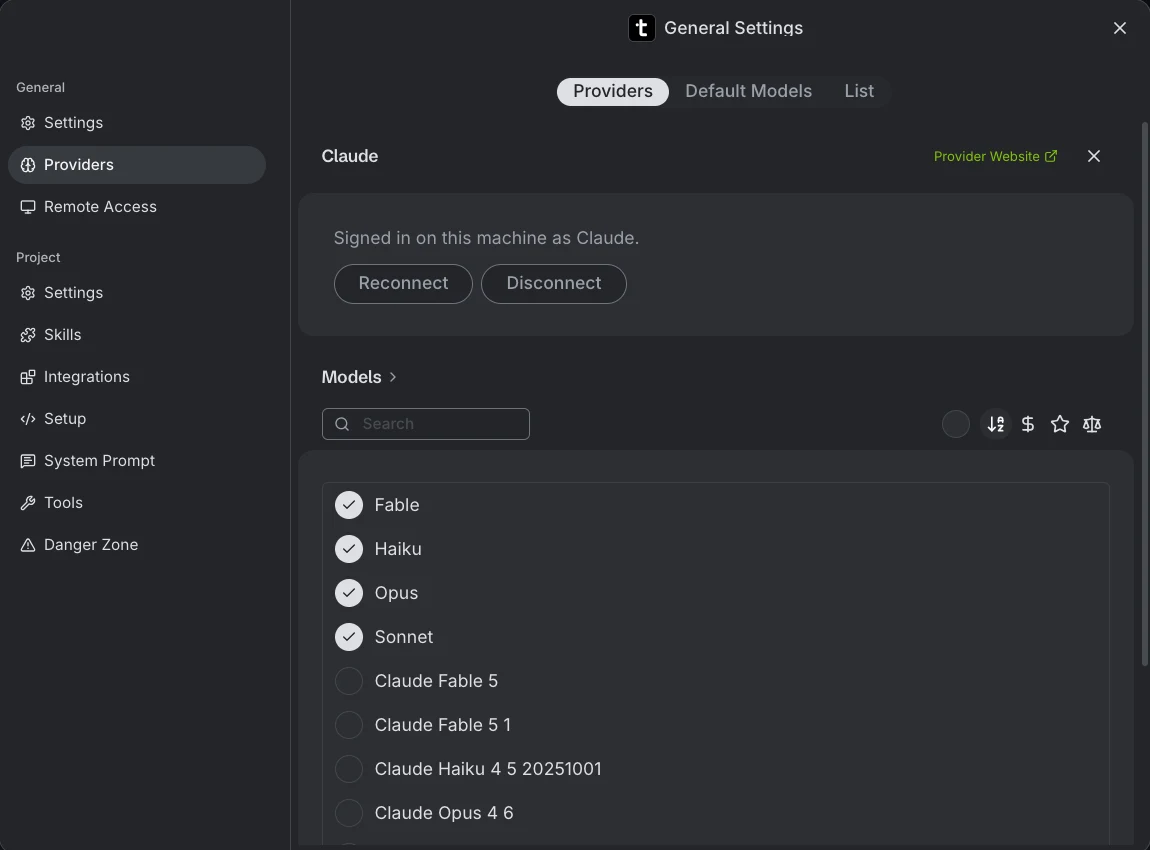
- Open Settings, then Providers, and pick Claude.
- Click Connect Claude. Tarsk opens the Claude sign-in page in your browser.
- Approve the sign-in and copy the authorization code that Claude shows you.
- Paste it into the field and click Finish sign-in.
The page then reads Signed in on this machine as Claude. Tarsk turns on the models your account offers, and Claude Sonnet is the default. Sonnet is plenty for a small game, so keep it.
The context usage panel of a Claude chat shows your 5-hour limit and Weekly limit, so you can see how much of your plan the game costs you. If you do not have a Claude plan, the same Providers page takes an API key from OpenRouter, OpenAI, Anthropic and others.
Step 3: Create the project
Open ⋯ More actions in the top right, then New Project. The menu offers five ways to start: Blank Starter, Git Repo, Open Folder, From Zip and New App. The game needs nothing but an empty folder, so choose Blank Starter.
Type a name. Tarsk shows the folder name under it.
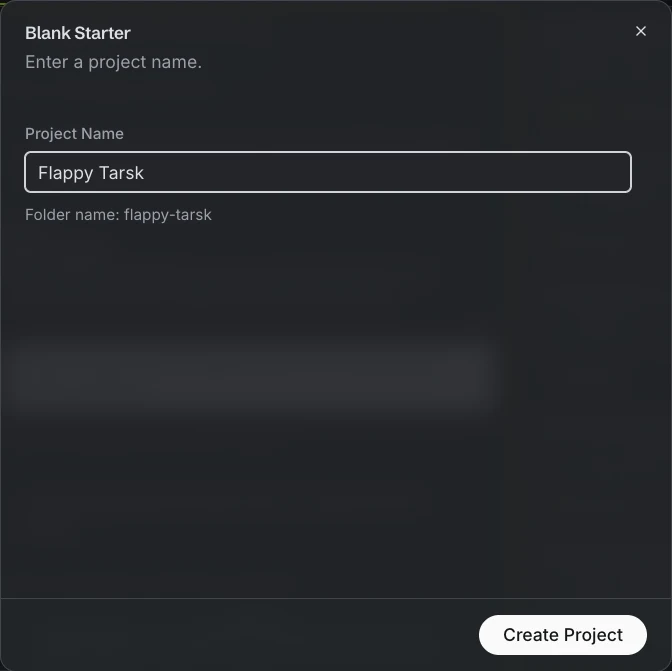
Click Create Project. The project opens with a chat, and the agent tells you it is ready to work in the new folder.
Step 4: Describe the game
Type what you want in the composer. Be specific about the parts you can see and the controls you expect. This is the prompt we used:
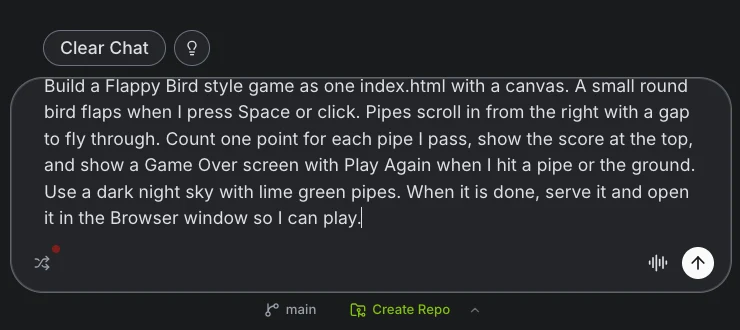
Build a Flappy Bird style game as one index.html with a canvas.
A small round bird flaps when I press Space or click. Pipes scroll
in from the right with a gap to fly through. Count one point for
each pipe I pass, show the score at the top, and show a Game Over
screen with Play Again when I hit a pipe or the ground. Use a dark
night sky with lime green pipes. When it is done, serve it and
open it in the Browser window so I can play.
Press Enter. The agent writes the file, starts a small local server and loads the game in a headless browser to check for errors. Our run took about a minute and produced 265 lines in one file. It also added a twinkling star field, a moon and a best score that the browser remembers.
Step 5: Play it in the Browser window
The agent opens the game in the Browser window next to the chat. You can also open the window yourself from the globe icon in the top bar and type the address that the agent gives you.
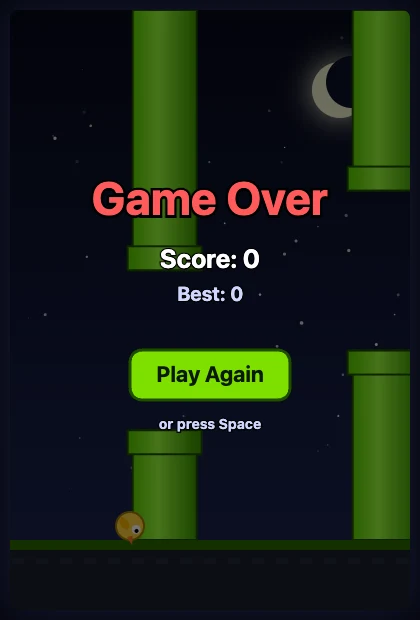
Play a few rounds. Then ask for changes in the same chat, one at a time:
- “The bird falls too fast. Make gravity a bit softer.”
- “Make the gap 20 pixels wider for the first ten pipes, then shrink it.”
- “Add a flap sound and a short sound when I score.”
The Browser window stays loaded when you switch to Chat or Files, so the game is still there when you come back. The agent can read the page, click and press keys in it, which helps when you ask it to check its own fix.
The Browser window is a desktop app feature. In the browser version of Tarsk the agent gives you the address and you open it in a normal tab.
Step 6: Try two art styles at once
You might not know if the game looks better as a neon arcade or as a soft pastel sketch. In most tools you try one, undo it, and try the other. In Tarsk you start two chats.
Click New Chat at the top of the sidebar. Tarsk gives the new chat its own copy of the project and its own branch, so it can edit index.html while the first chat edits its own index.html. Do it twice:
- Chat A: “Restyle the game as an 80s neon arcade. Glowing pipes, a pixel font, a scanline overlay.”
- Chat B: “Restyle the game as a pastel watercolour sketch. Soft clouds, a paper texture, hand-drawn pipes.”
Both agents work at the same time. Open each game in the Browser window, play both, and keep the one you like. Archive the other chat. Its work stays on its own branch and never reaches your project.
The same trick works for any idea you are not sure about: two physics settings, two control schemes, two ways to show the score.
Step 7: Plan the next features as tasks
A game always has a next feature. Open the Tasks window from the top bar and click New Task for each one:
- Add a high score table with the top five runs
- Add a power-up that makes the bird small for five seconds
- Speed the pipes up a little every ten points
- Add a mobile layout with tap controls
Tag each task, and switch to the board view to see your tags as columns. Drag a card between columns to change its tag.
Then let an agent pick up the work. Open the Automate window, choose Add Automation, and pick the Has Tag trigger with a tag such as build-next. Now when you add build-next to a task, Tarsk starts a new chat that reads the task and starts on it, and removes the tag from the card. You keep playing while another chat builds the power-up.
Step 8: Play-test it with a recording
Ask Tarsk to test the game in a real browser. Type /e2e-test, then the address and the steps in plain words:
/e2e-test
Target: http://localhost:8765/index.html
1. Verify the start screen shows the bird and the score 0.
2. Press Space five times and verify the bird moves up.
3. Wait until the bird hits the ground and verify Game Over shows.
4. Click Play Again and verify the score resets to 0.
The skill drives a browser through the steps, records a video of the whole run, takes a screenshot at each “verify”, and writes a table of passed and failed steps. The first run sets up the browser tool for you. You need ffmpeg for the video (brew install ffmpeg on a Mac). Without it you still get the screenshots and the table.
The e2e-test skill is one of many. Skills and MCP servers add tools to the agent, and you can connect most MCP servers from chat with one click.
Step 9: Ship it as a pull request
A Blank Starter project lives only on your disk. Click Create Repo in the chat footer to put it on GitHub. You need the GitHub CLI signed in on your Mac.
Then tell the agent “open a PR” or “ship this”. The agent commits on the chat’s branch and Tarsk opens the pull request. The description ends with an Open Conversation in Tarsk link, so anyone who reviews the change can go back to the chat that made it.
If you prefer buttons, the footer shows Commit when you have changes and Create PR when the branch has commits that main does not.
Keep building from anywhere
The game does not need you at your desk.
- Voice. Click the microphone in the composer and say “make the moon bigger”. Speech recognition and the spoken reply run on your Mac, and your voice goes to no speech service.
- Your phone. In Settings → Remote Access, sign in and turn on Mobile & Network Access. The Tarsk iOS app then signs in with your email and a 6-digit code and connects to your Mac. Start a chat from the couch and your Mac does the work.
- Another machine. The same setting lets you send a long run to a desktop or a small server that stays awake, so your laptop can sleep.
What to take away
- Install the app, sign in with Claude, choose Blank Starter, and describe the game. You get a playable result in minutes.
- Use one chat per idea. Each chat has its own copy and branch, so you compare versions side by side and keep one.
- Queue features as tasks, let a Has Tag automation start them, and test with
/e2e-testbefore you open the PR.
Download Tarsk and build your own game, or read the documentation for the full quickstart.