
Let one chat reach several projects
A Tarsk chat can send work to another project, but only the projects you picked for that chat. Here is how the grant works and what comes back.
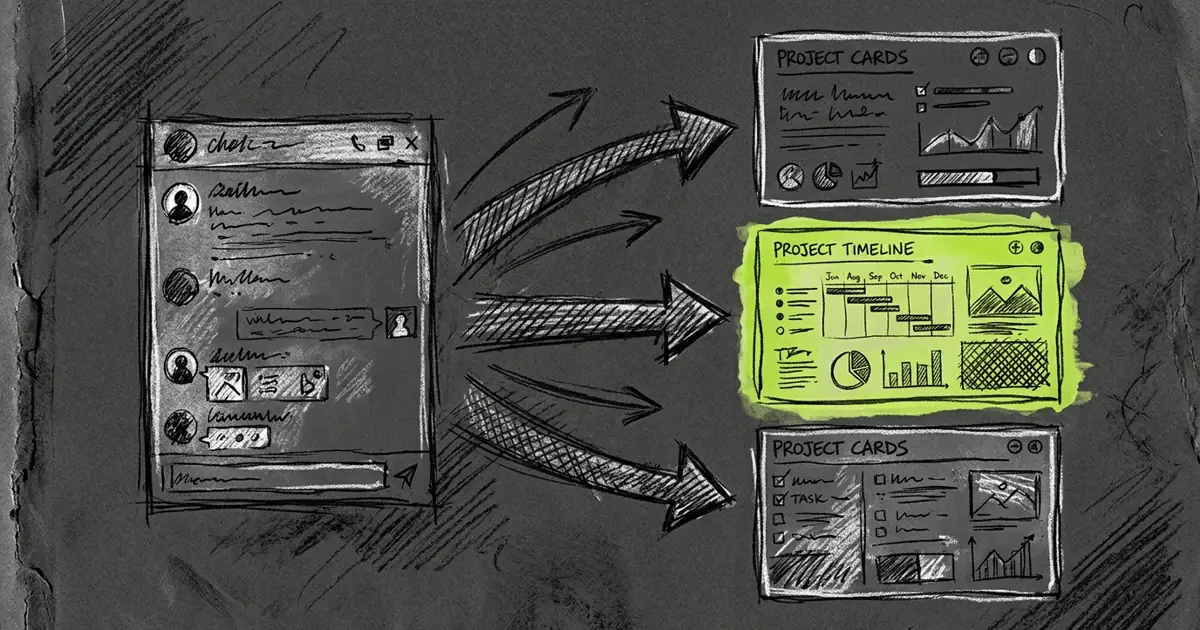
You are working in one project and you need a fact from another. Copying it across by hand is slow. Handing an agent every project on your machine is a risk you do not need to take.
Tarsk takes a middle path. A chat can reach the projects you picked for it, and nothing else.
Pick the project, once per chat
Type # at the start of a word in the composer. A picker opens under the heading Projects & Bots. Each row shows the project as #name, a Project or Bot subtitle, and the description you wrote for it. Pick with the mouse or the arrow keys and Enter.
The project then appears as a small avatar in a row above the composer. That row is the grant. It belongs to this chat, not to the project and not to the whole app.
Ask can offer a project as an answer choice too. The option carries the note Allows this Project for this Conversation only. Choosing it grants the same access as the picker.
A new chat starts with an empty row. Your current project never appears in the picker, because it is already in reach.
The grant is what allows the launch
When you send #Reports pull the last quarter numbers in a chat, Tarsk checks the grant before it starts anything. Naming a project in a message does not create access. The model cannot add a project to its own list by asking.
The other project receives an ordinary prompt in one of its own chats. It does not see your transcript. It does not inherit the other projects you granted to your chat. If your chat can reach three projects, the second one still knows only what you wrote to it.
What comes back
The reply arrives in your chat as one collapsed row that names the project and says it returned a response. Expand the row to read the answer. Non-answers keep their own wording, so you know what happened without opening anything:
- stopped before it replied
- failed before it replied
- finished with no reply
- stopped because the model was stuck repeating
Your agent wakes when the reply lands and can act on it. It can ask a question, get the answer, and continue with the plan it was working on.
A second mention continues the same chat
The first version of this feature opened a new chat in the target project for every mention. A project that you tagged five times grew five rows in its chat list, and the fifth prompt arrived with no memory of the first four.
A mention now continues the chat the earlier one started, as long as that chat is idle and every earlier launch into it has replied. Your second request reads as another turn in the project’s own conversation.
Two cases still open a new chat on the same project: the target chat is busy with a turn, and an earlier launch into it still owes your chat a reply. Both keep the reply path intact, so a mention does not fail and replies keep their order.
Clear Chat is the reset. Clearing the target project moves it to a fresh chat, so your next mention lands there. Clearing your own chat starts a new chat with no reach, and the next mention opens a fresh chat on the other side as well.
Several projects in one turn
You can launch to more than one project in the same turn. Tarsk groups those launches, waits for all of them, then starts one continuation with every outcome in hand. The group joins by the turn that started it. Two launches a few seconds apart in one turn still merge.
You do not wait to read the replies. Each one appears in your chat as it arrives. Completion only decides when the automatic continuation runs.
A panel labelled Cross-project work sits above the composer while a group is pending. It lists each project with its state and a Stop waiting button. Use it when one project is slow and the others are done. Stopping the wait releases the group and leaves that project’s work running.
A launch you send without expecting a reply stays outside the group and reports back on its own. Group membership survives a restart, so closing the app does not lose the join.
Take access back
Click an avatar above the composer to remove that project from the chat. The tooltip says Click to remove from chat.
Removal affects future launches only. Work that started keeps running and still reports back. If you remove the last avatar, the chat has no reach, and Tarsk refuses the next mention until you grant a project again.
Limits worth knowing
- One turn can hold at most ten directed launches, and one directed prompt can be up to 32,000 characters.
- Standard projects ship with the Projects and Prompt tools switched off. You can enable them in the project’s tool settings.
- Ask may show project names and descriptions so it can offer a choice. Seeing a name there grants no access.
The avatars above the composer show which projects your chat can reach. Click one to remove it.
Open a project, type # in the composer, and pick the project that holds the answer you need. The reply will come back to the chat you are already in.