
Create a project from a repo, a folder or a starter
Clone a repository, open a folder you already have, or pick one of 54 starters. Tarsk runs the setup and tells the agent what the project is.
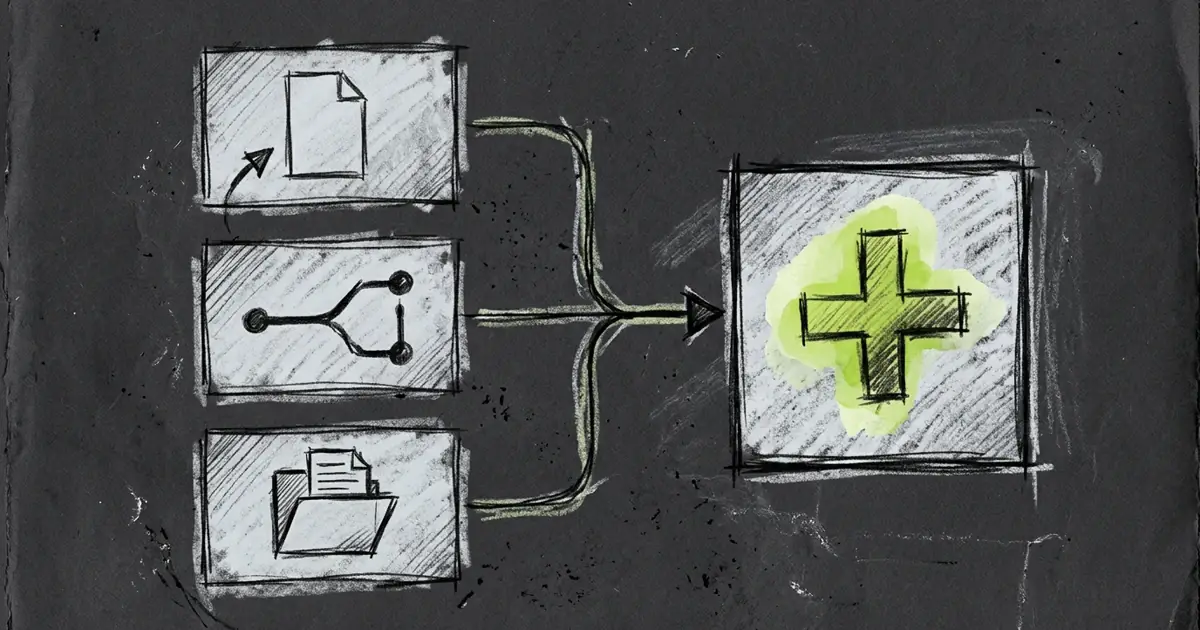
A new project can begin with a repository URL, a folder already on your disk, or one sentence about an app you want to build. Tarsk treats each of those as a project and gives them one menu.
Five ways in
Press New Project and the menu offers:
- Git Repo clones a repository you name.
- New App scaffolds one of the built-in starters.
- Open Folder takes a folder that already exists on this machine.
- Blank Starter makes an empty folder under your Tarsk root.
- From Zip imports an archive.
Each path ends the same way: a project in the sidebar, a first thread, and a chat where the agent already knows what it is looking at.
Clone a repository
Choose Git Repo, paste the URL, press Enter. Tarsk takes the project name from the URL and picks a free folder name, so cloning the same repo twice gives you two projects instead of an error.
The next step is your commit workflow:
- Pull Requests creates a feature branch and lets you open pull requests.
- Direct Commits works on the main branch with no feature branches.
Clone defaults to pull requests, and Tarsk remembers your last choice.
Press Create and the dialog closes. The project appears at once with a live block in the chat that streams the clone. A large repository sends thousands of lines through that block, and the chat stays responsive. If the clone fails, Tarsk removes the half-made project from the sidebar.
Private repositories need your Git credentials first. When a clone asks for authentication, Tarsk stops and tells you to sign in through the Create Project dialog and retry. The agent cannot sign in for you.
Install what the clone needs
Most cloned repositories need their dependencies before they run. Tarsk looks through the checkout, finds each package with dependencies, and reads the lockfile beside it to pick the right installer. Then it asks:
Install dependencies? Found 3 packages with dependencies to install. Choose which ones to install now.
Each row shows the folder and the exact command. Untick the ones you do not want, press Install, or press Skip and do it yourself later. Tarsk saves the first script as the project setup script and keeps the rest on the list.
Pick a starter
New App opens the catalog: 54 starters across 18 types. Angular, React, Vue, Svelte, Solid, Preact, Lit, Qwik, Nuxt, Astro, Next.js, TanStack Start, Hydrogen, Waku, a plain web project, a Capacitor plugin, and native iOS and Android apps.
Each entry describes what you get: a starting project with a list, a side menu with navigation, or a tabbed interface. The native starters are a SwiftUI app ready to open in Xcode and a Kotlin app with a Gradle project.
Pick a type, then a variation, then name the project. You also choose the package manager (bun, npm, yarn or pnpm) and the commit workflow. Tarsk scaffolds the project and installs what the starter needs.
Open a folder, start blank, import a zip
Open Folder shows your system folder picker. If that folder is already a project in Tarsk, you get the existing one back rather than a second copy with the same code.
Blank Starter asks for a name and nothing else. You get an empty folder and a chat, which suits a project whose code you plan to write from the first message.
From Zip imports an archive. If a project with the same name already exists, Tarsk warns you that the import replaces its source code, its threads and any work in progress, and asks you to confirm. The replacement cannot be undone.
Ask the agent instead
You do not have to open the dialog. Ask in a chat and the agent uses the same paths.
Give it a repository URL and it clones the repository. The starter list stays out of the way, because you already made that choice.
Give it an idea and it loads the starter catalog before it asks anything. Then it asks one question: what do you want to build. The answers are the starters with short descriptions, plus three ways out: use a GitHub or Git repository, start a blank project, or open an existing folder. You can also describe your app in your own words, and the agent suggests the starter that fits and says why.
It asks for the project name in the same question, so you are not answering twice. Bun is the default package manager unless you ask for another. If the catalog fails to load, the agent says so instead of inventing options.
What the agent knows afterwards
Tarsk opens a first thread with the project and reads the checkout before you type.
That reading covers the framework and its version, the build tool, the test libraries, the UI libraries and the package manager. The result is a short description in the agent’s instructions, so your first message does not begin with “what is this project”.
Project settings hold the rest. Run Command starts the dev server, and the sparkle button detects the script or writes one for you. The setup script has the same assist. Both fields stay editable, which matters when a project needs a command that no detector would guess.
Limits
- The agent cannot open a native folder picker. Give it the absolute path.
- A clone started from a chat uses pull requests. Direct commits are a choice in the dialog.
- The install prompt covers JavaScript packages it can find. A project without a package file gets no prompt.
- Replacing a project from a zip discards its threads and in-progress work.
Try it
- Press New Project and choose Git Repo.
- Paste a repository URL and leave Pull Requests selected.
- Watch the clone stream into the new chat, then answer the install prompt.
- Start a second project with New App, pick a type and a variation, and ask the agent what it is working on.
- Open Project Settings and check the run command Tarsk detected.
Three things to carry away:
- A repository, a folder and a starter are the same kind of project once they exist.
- Setup is part of creation: the install prompt, the run command and the setup script arrive filled in.
- The agent starts each project knowing its stack, so your first message can be about the work.