
Let Tarsk drive your desktop apps
Computer use lets the agent open an app, read its windows, click and type on your machine, with an approval prompt before any action that changes something.
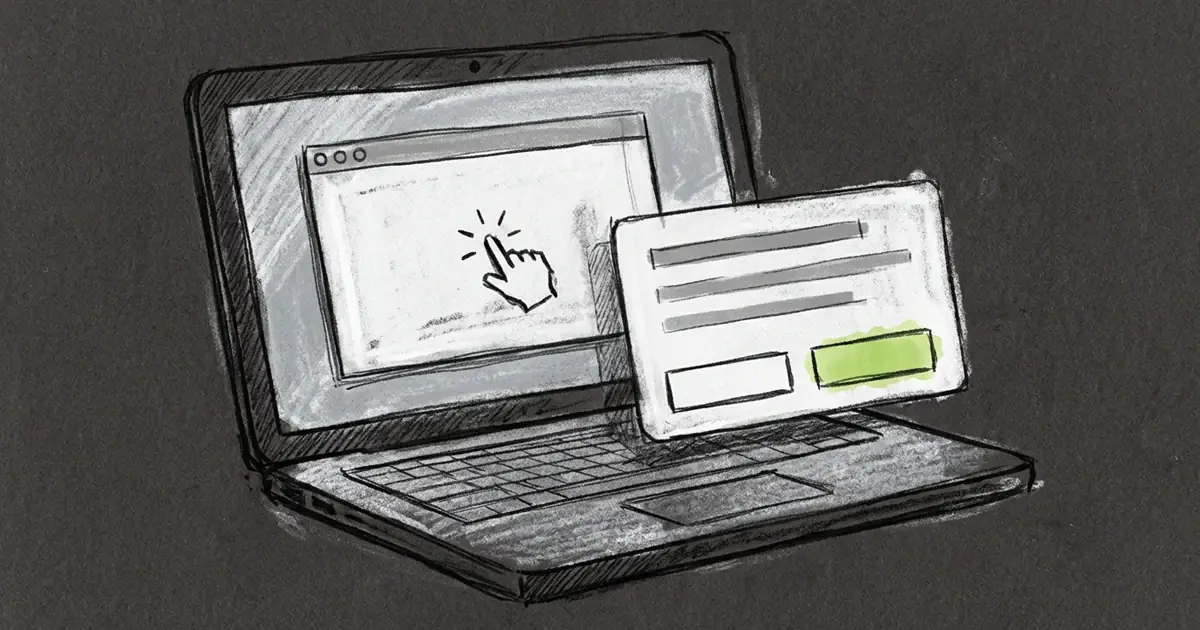
The release notes you need are in a desktop app. So is the invoice you keep copying into a spreadsheet by hand. Neither has a command line, so the agent stops at the edge of the terminal.
Tarsk has a Computer tool for that edge. It opens apps, reads windows, clicks, types and takes screenshots, and it asks you before each action that changes something.
Some work never reaches a terminal
Most engineering tasks end at a shell prompt. A good number do not. A native mail client holds the thread you want summarised. A design app holds the export you need renamed. An internal admin page has a form with no API behind it.
You can describe these steps and hope the agent guesses the layout, or you can hand it the screen. Computer use does the second.
Turn it on for the project
Open the project’s tool settings and switch on Computer. It ships off, so it stays out of the way until you want it. The tool also stays out of plan mode, where the agent reads and reasons without acting.
Computer use runs on macOS, Windows and Linux. It does not exist on the phone clients, and the tool is missing there rather than present and failing.
What the agent can do with a screen
The tool takes a driver action and its arguments. Three groups cover the work.
Look. List running apps, list windows, read the accessibility tree of a window, get the screen size, check permissions. A window snapshot returns element tokens for the buttons and fields inside it, so the agent can name the control it wants instead of guessing coordinates.
Act. Click, double click, right click, type text, press a key, send a hotkey, scroll, drag, set a field value, move the cursor, open a menu item, launch an app, bring a window to the front, resize a window, quit an app.
Repeat. A step list or a short script runs several actions in one call, which keeps a twenty-step form fill from becoming twenty round trips.
There is clipboard read and write as well, for moving a value between two apps.
A screenshot comes back with the reply, saved inside the project and drawn in the chat. Screenshots count as looking, so they never prompt.
The first call installs the driver
Tarsk does not ask you to install a separate automation app. The first computer call downloads the driver into Tarsk’s own cache, verifies its checksum, and checks that it starts. Tarsk pins the version, so an update arrives with a Tarsk release.
On macOS the download is the signed app bundle, and that signature matters. macOS grants screen access to the signed app and refuses a stray background process. The first run asks for Accessibility and Screen Recording in the system dialogs. Grant both, or the agent can read a window and not click in it.
Linux and Windows skip the bundle and use the smaller binary.
If you already run the driver yourself, point Tarsk at it with TARSK_CUA_DRIVER_PATH, or attach to a daemon you started with TARSK_CUA_DRIVER_SOCKET. Set TARSK_CUA_DRIVER_AUTO_INSTALL=0 to keep Tarsk from downloading anything, in which case computer use reports that the driver is missing.
Every action that changes something asks first
Reading prompts nothing. Listing windows, inspecting an element tree, checking a value, taking a screenshot: none of these stop for approval.
Clicking, typing, pressing keys, launching or quitting an app, writing the clipboard and running a script all stop at one question: allow this action once, or cancel.
The prompt shows the complete input as a code block, so a script cannot hide half its payload behind formatting. Tarsk does not offer input it cannot display. There is no “always allow” switch, which means a long form fill costs one approval per action unless the agent batches it into a step list.
A cancelled prompt sends a refusal back to the agent. Nothing runs, and the agent reports the block instead of retrying.
Cancel ends the session
Each conversation gets its own driver session. Snapshots and element tokens live in that session, so the agent can read a window in one call and click a token from it in the next, even across separate CLI processes.
Stopping a run revokes that conversation’s session. Other chats and other tools using the same driver keep working, because the driver is shared and Tarsk leaves it running.
One thing to know: a click that reached an app cannot be undone. Cancel stops the next action. The click that landed a moment ago stays landed. Treat approval as the real checkpoint.
Where the screen beats the shell
Good candidates share a shape: the work lives in a GUI, the steps are obvious to a person, and the result is checkable.
- Rename and move a batch of exports in a design app.
- Fill an internal form that has no API, then screenshot the confirmation.
- Read a native mail thread and draft a reply in the same window.
- Open a settings dialog, find the checkbox that changed, and report what it says now.
- Reproduce a bug by clicking through an app and capture each step.
Poor candidates are the mirror image. If a command exists, the command is faster and easier to verify. If the task needs judgement across a hundred screens, a person still wins.
Limits worth knowing
Computer use needs a desktop platform and two macOS permissions. It ships off by default. It costs a round trip per action unless the agent batches, so it is slower than a script. The agent reads windows through the accessibility tree. Apps that draw their own interface report little there, which leaves screenshots and coordinates as the fallback.
Turn on Computer for a project and ask for something small: open an app, list its windows, and describe what is on screen. That one call installs the driver, shows the permission dialogs and gives you a feel for the approval prompt before you hand over a real task.