
The agent knows which page your Browser shows
When the Browser window is open, Tarsk tells the agent the page URL with each prompt, so 'fix this page' points at the right page.
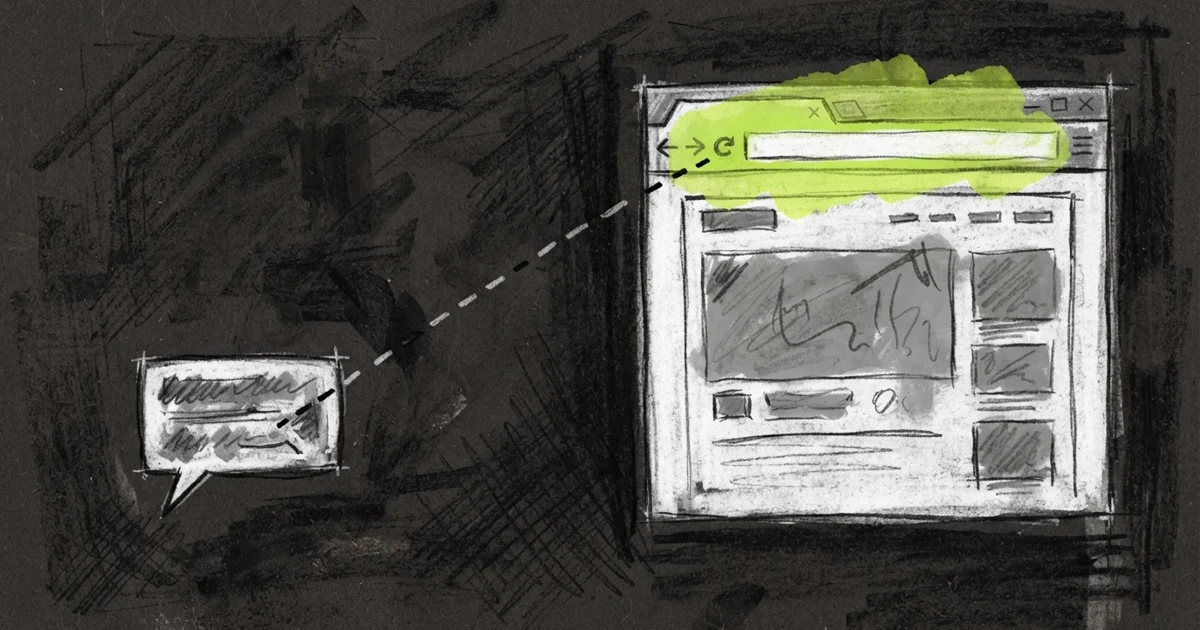
You have your app open in the Tarsk Browser window, three clicks deep, on the settings page. You type “the save button on this page overlaps the footer”. Until now the agent had to guess which page “this page” was, or ask you.
Now the agent knows. When the Browser window is open, Tarsk adds the page URL to each prompt you send.
What the agent sees
Tarsk appends one line to the end of your prompt before the agent reads it:
Note: the browser URL is http://localhost:5173/settings
You do not type it, and you do not see it in the chat. Your message shows as you wrote it. The agent uses the URL to find the route, the component or the page file that matches what you look at.
Tarsk sends the URL again with every prompt. If you click to a new page between two prompts, the next prompt carries the new address.
When Tarsk sends the URL
Tarsk adds the note only when all of these are true:
- The Browser window is open in the chat you send from.
- The page is an
httporhttpsaddress. Tarsk skips blank pages and other schemes. - The Browser window sits inside Tarsk. A Browser that you popped out into its own window does not send its URL.
If you have more than one Browser window open for the same workspace, Tarsk sends the URL of the one you used last.
Your chat history stays clean
Tarsk does not save the note with your message. Old URLs do not pile up in the conversation, and the agent does not read a stale address from ten turns ago. The agent only gets the URL of the page you have open at the moment you press Enter.
The address bar now follows the page
For the note to help, the URL must be right. In the web version of Tarsk, the Browser address bar used to keep the first address you loaded. Click a link inside your app and the bar did not change.
Two fixes landed with this feature:
- The address bar follows navigation. When you click a link, use the back button inside your app, or change the
#part of the URL, the address bar updates. This works for pages from your own dev server, the usual case for a local preview. - Refresh reloads the page you see. Before, the refresh button went back to the first address. Now it reloads the current page.
The desktop app already tracked the current page, and it still does.
Try it
Start your dev server, open it in the Browser window, and click through to the page you want to change. Then describe the problem without naming the page, for example “the heading on this page is too large”. The agent opens the right file.
- With the Browser open, each prompt tells the agent the current page URL.
- The URL is hidden from the chat and is not saved in history.
- In the web version, the address bar and refresh now follow the page you see.