
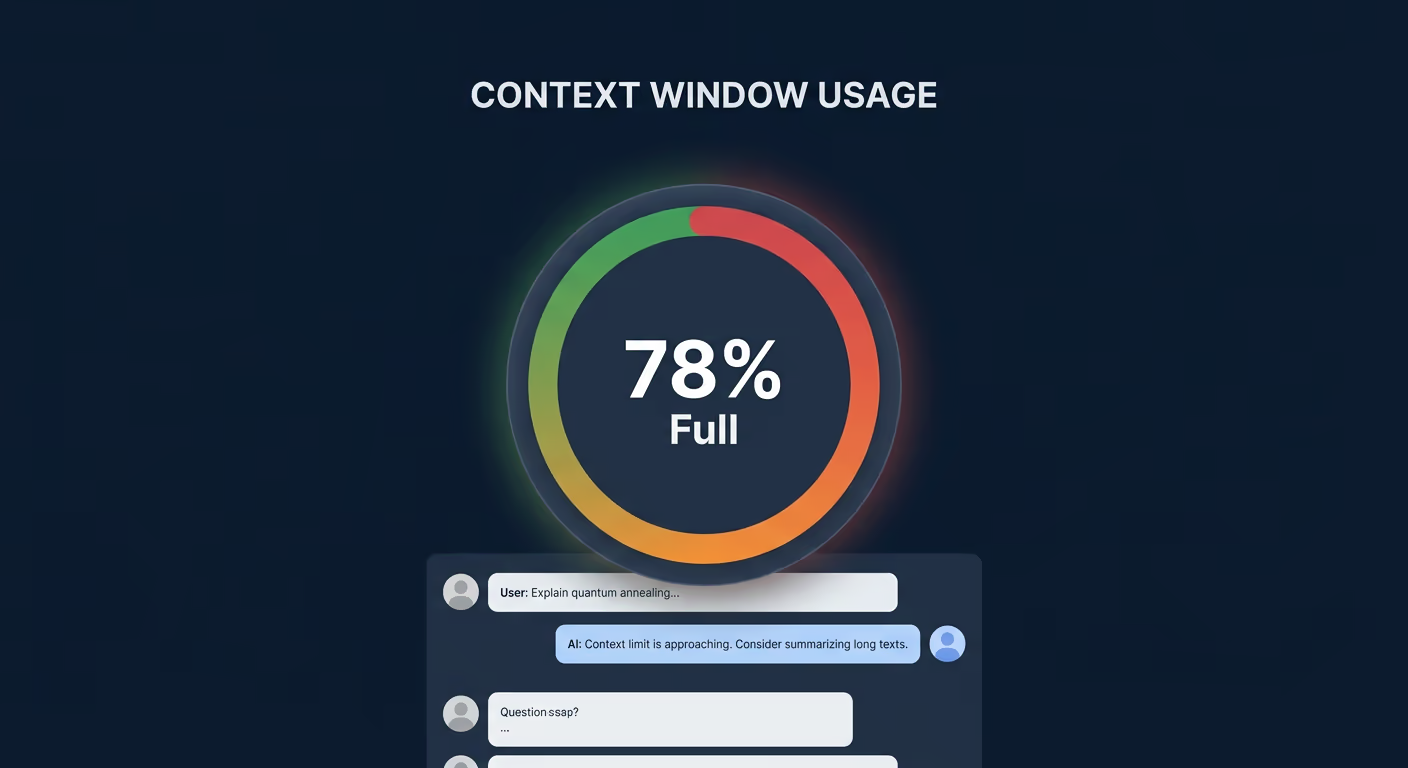
Every model has a context window: a fixed token budget that fills up as your conversation grows. When it runs out, the agent loses access to earlier messages, and response quality drops. Tarsk gives you a visual indicator of how close you are to that limit, updated after each agent turn.
This guide covers the token usage indicator, the context window breakdown, and how to use both to manage long sessions.
What you will learn
By the end of this guide, you will know how to:
- read the circular ring indicator at a glance
- open the context window popover to see a six-category breakdown
- use color thresholds to decide when to start a new thread
- audit per-message token counts in the History view
Where the indicator lives
Look at the bottom of the chat input area. Between the mode selector buttons and the send button, you will see a small icon.
When the conversation is short, the icon shows a simple graph symbol in muted gray. It stays out of the way.
Once your context usage crosses 25%, a circular ring appears around the icon. The ring fills clockwise as your context window consumption grows. That ring is your primary at-a-glance signal.
Read the color thresholds
The ring changes color at two thresholds:
- Below 50%: the ring stays muted with no strong color accent. You have room.
- Between 50% and 75%: the ring turns orange. The conversation is getting long.
- Above 75%: the ring turns red. You are close to the limit.
You do not need to click anything to get this information. The color tells you where you stand.
Open the context window popover
Click the ring icon to open a detailed breakdown.
The popover header reads “Context” and shows two summary numbers:
- a percentage (for example, “72% Full”)
- a token fraction (for example, “~145.2K / 200K Tokens”)
Token counts format compactly: raw numbers below 1,000, “K” for thousands, “M” for millions.
Below the summary, a stacked horizontal bar shows how the context window is divided across six categories. Each segment is color-coded and sized in proportion to that category’s share of the total.
Understand the six categories
Every token the model sees falls into one of these buckets:
| Category | Color | What it includes |
|---|---|---|
| System prompt | Gray | The base instructions that shape agent behavior |
| Tool definitions | Purple | Descriptions of every tool the agent can call |
| Rules | Green | Custom rules you configured for the project |
| Skills | Gold | Skill instructions loaded into the current context |
| Subagent definitions | Blue | Definitions for specialized sub-agents |
| Conversation | Orange | Your actual chat history, including tool calls and results |
All six categories appear in the table every time, even when some show zero tokens. You see the full picture of what is consuming your budget.
Why the conversation category matters most
The first five categories (system prompt, tools, rules, skills, subagents) are relatively fixed. They load once per session and do not grow.
The conversation category grows with every exchange. Each message you send and each response the agent generates adds tokens. Tool call results, file contents, and code snippets all count.
When you see the conversation segment taking up most of the stacked bar, you know the context window is filling because of chat history, not configuration.
Decide when to start a new thread
Use the ring color as your guide:
Gray ring (under 50%). Keep going. You have plenty of room for longer back-and-forth sessions.
Orange ring (50-75%). Start thinking about whether you can wrap up the current task soon. If the agent is still performing well, you can continue. If you notice it repeating itself or forgetting earlier context, start a fresh thread.
Red ring (above 75%). The agent will begin losing access to earlier parts of the conversation. Messages near the start of the thread may drop out of context. Start a new thread and summarize what the agent needs to know.
The ring resets when you switch to a different thread.
Audit per-message token counts
Open the History view to see a table of every message in the current conversation.
Each row shows:
- Input tokens consumed by that request
- Output tokens generated in the response
- The model used
- How long the request took
- A timestamp
This view helps you spot which messages are expensive. A message where the agent reads and processes a large file will show a much higher input token count than a short question. If you are watching your API costs, the History view gives you the per-request accounting you need.
What happens when the context window fills up
The model cannot see messages that fall outside its context window. When the window is full, the oldest messages get truncated to make room for new ones.
You will notice this when the agent:
- asks about something you already explained early in the conversation
- repeats a tool call you already asked for
- loses track of a decision made ten messages ago
These are signals to start a new thread, not signs that the model is broken.
Tips for managing token consumption
Use concise prompts. Long prompts with embedded file contents consume context faster than focused questions.
Start new threads for new topics. If you finish one task and move to another, a fresh thread gives you the full context budget for the new work.
Check the six-category breakdown if usage seems high. If the “Tool definitions” or “Skills” segments are unexpectedly large, you may have more tools or skills loaded than you need. Removing unused skills from the project frees up context space for conversation.
Watch the ring during long refactoring sessions. Multi-file refactors tend to generate long exchanges with large code blocks. The ring will tell you when you are approaching the limit before the agent starts losing context.
Summary
The token usage indicator sits in your chat input bar and updates after each agent turn. The ring shows context window consumption at a glance, with color thresholds at 50% and 75%. Click it to see a six-category breakdown of where your tokens are going. Use the History view to audit per-message costs.
Start a new thread when the ring turns orange or red. Your agent will thank you.