
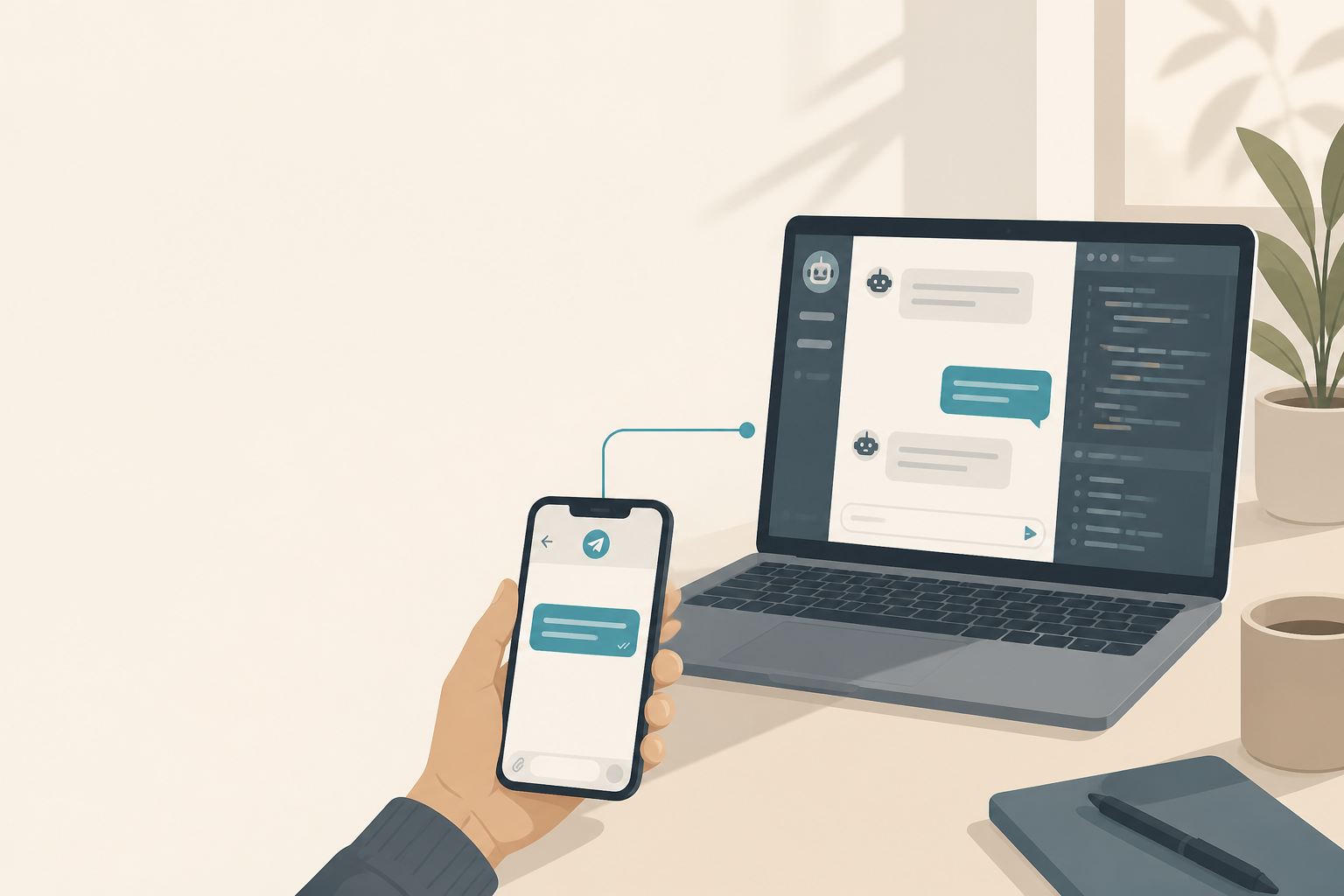
Control Tarsk by sending messages to it through Telegram. This guide covers the steps to setup Telegram and sending your first prompt.
What problem this solves
Asking Tarsk to perform any action from a messaging app from your phone is like living in the future. Prompt a coding task, a life question, turn off the lights in your house or get Tarsk to remind the kids to brush their teeth.
What you need
- Tarsk running on your computer with at least one project
- A Telegram account
- About five minutes
Tarsk must be running on your laptop or computer. Tarsk will only respond in Telegram if your computer is running Tarsk.
Step 1: Create a Telegram bot
In Telegram, open a chat with BotFather and send /newbot. Choose a display name and a username ending in bot.
BotFather replies with a token that looks like 123456789:AAH.... Copy it. That token belongs to this Tarsk install only. Create a separate bot if you run Tarsk on another machine.
Step 2: Paste the token in Tarsk
In Tarsk, open Settings → Telegram.
- Paste the token into the bot token field.
- Click Save token.
- Confirm the page shows the bot as configured and the bridge as running.
If the bridge shows not running, save the token again and check that Tarsk is still open.
Step 3: Create an invite and pair
Still on Settings → Telegram, click Create invite, then Copy. You get a command like:
/pair a1b2c3d4e5Invite codes work once and expire after 30 minutes. If pairing fails, create a new invite.
Open a private chat with your new bot. Paste the /pair command and send it. Group chats are ignored.
The bot replies that you are paired and tells you to pick a project next.
Step 4: Pick your project
Send:
/projectsTap your project in the button list. You can also set it by name:
/project my-repoYou must set an Active Project before prompts work. Telegram does not create projects. Add them in Tarsk first.
Step 5: Send a prompt
Type a normal message in the DM, the same way you would type in Tarsk chat:
Summarize the last commit and suggest a test to add.The bot replies with something like 🤔 claude-sonnet-4-5 will answer this about my-repo (1st turn, 15%)…, then a short summary when the turn ends.
Open Tarsk to read the full reply, tool output, and file changes. Your Telegram message appears in the conversation as a user turn with your Telegram name on it.
Photos work as attachments. Other media types do not.
Useful extras (optional)
| Command | Use when you want to… |
|---|---|
/status | Confirm project, thread, and busy state |
/new | Start a fresh conversation on the same thread |
/stop | Cancel an in-progress turn |
/help | See the command list again |
If Tarsk asks a yes/no permission question mid-turn, Telegram can show Allow and Deny buttons. Longer questions still appear in the Tarsk UI.
Common pitfalls
Bridge not running. Tarsk must stay open. Re-save the token if the Settings page shows the bridge as idle.
“No Active Project.” Send /projects or /project <name> before your first prompt.
Busy Thread. Wait for the current turn to finish, or send /stop, then try again.
Invite rejected. Codes expire in 30 minutes and work once. Create a new invite in Settings.
Empty project list. Add a project in Tarsk, then run /projects again.
Summary
Create a BotFather bot, paste the token under Settings → Telegram, pair with /pair, pick a project with /projects, then send a normal DM. Keep Tarsk running. Use the phone for short prompts and status; use Tarsk for the full session.
Open Settings → Telegram in Tarsk when you are ready to paste your token and create your first invite.